The Merge Configuration page of the wizard provides the ability to map source data columns to variables and other columns useful for the NCA. (Default settings for this page are configurable, see “Data Mapping” in the Configuration section for details.)
For each data source selected in the previous step, there is a separate tab.
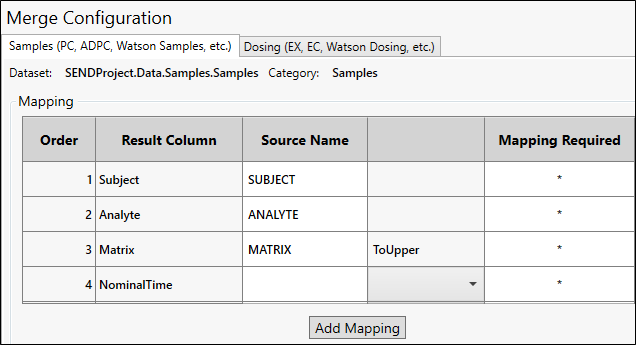
Create a mapping with a Result Column by clicking the cell in the Source Name column and choosing the dataset column name from the menu. If an unmapped (i.e., empty) cell is a required field, it will be highlighted by a red border.
Result Column: Standard variable names to map.
Source Name: Column name in the source dataset to which a result column is mapped.
Empty column header: If conversion options are available for a column, one can be selected from the menu in the cell to the right of the Source Name. Otherwise, the cells in that column are inactive. 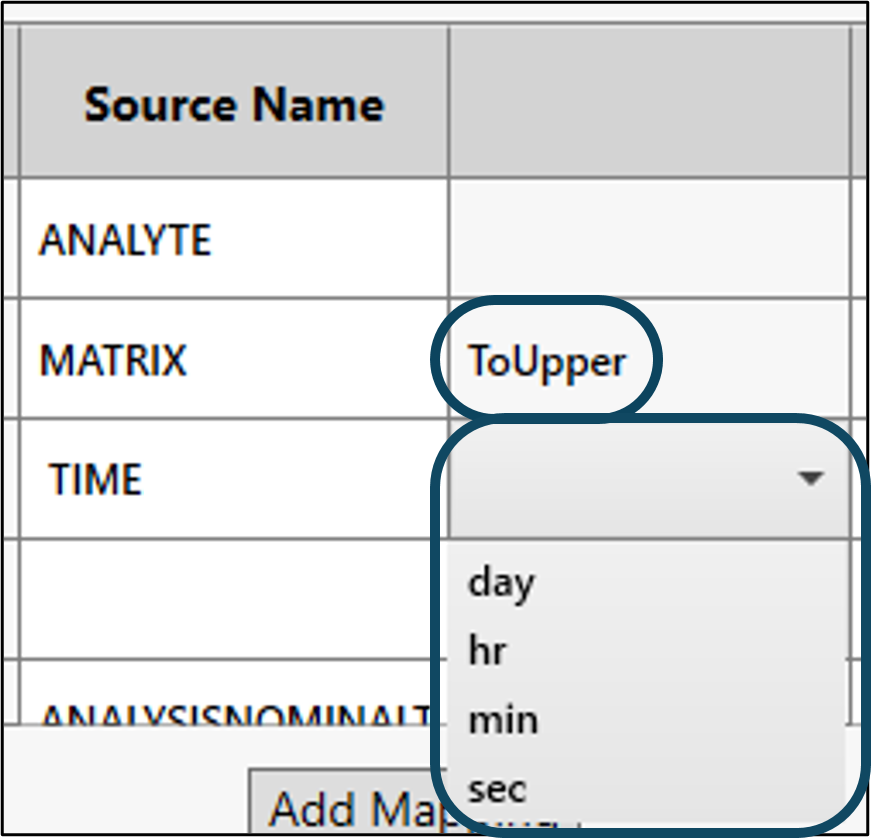
For a Molecular Weight result column, it can either be mapped to a source column or a value can be entered manually as shown in the following image.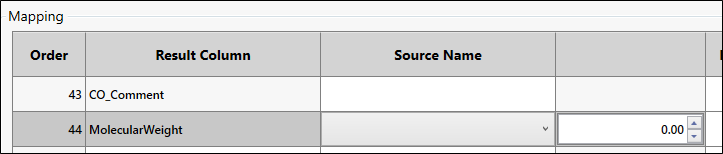
Mapping Required: Available in the Samples tab. Displays an asterisk if the variable is required to be mapped.
Sample Merge Key: Available when merging multiple datasets, check the box(es) for the data column(s) to use in sorting the merged data. 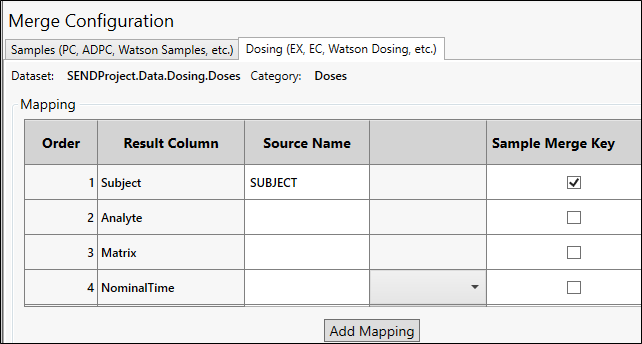
Add Mapping: Use to expand the table so other variable columns can be mapped. See “Add a variable mapping” fore details.)
Note: Source files that are mapped to the same source type and have the same variable mapping creates one dataset containing appended data instead of merged data.
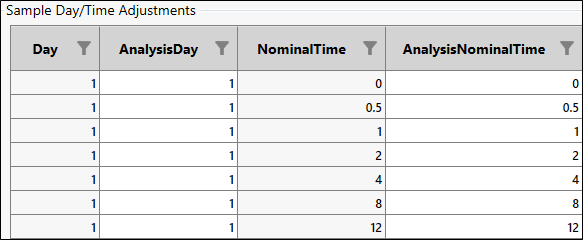
The Samples tab may have an additional Sample Day/Time Adjustments table, depending on PK Submit configuration (see “Data Mapping”). This table lists all unique combinations of Day and NominalTime values.
Adjusting the Day is useful if, for example, sampling is done hourly and the hour 24 sample is marked as Day 2, but needs to be part of Day 1. Simply edit the cell for the hour 24 sample.
Adjustment of the Nominal Time is useful if there are negative values (e.g., -0.00). Edit the cell directly to remove the negative sign.
The worksheet panel at the bottom of the page presents the contents of the output worksheet based on the source data columns and the specified mappings. All required and expected columns (whether mapped or not) are displayed.
Details on “Sorting and filtering” are available, if needed.
Click Next to review merged data.