A separate tab for each type of data (Samples, Demographics, Dosing or Subject Level Data) allows configurations for each to be maintained separately.
Load Source Data: Load the variables from a source file in an open project’s Data folder into the Source Column dropdown menu.
Reset to Factory Settings: Applies factory default settings to all mappings tabs.
+ button: Add a row to the table representing a new result column. Any required fields will be highlighted in red and have a red indicator in the table cell.
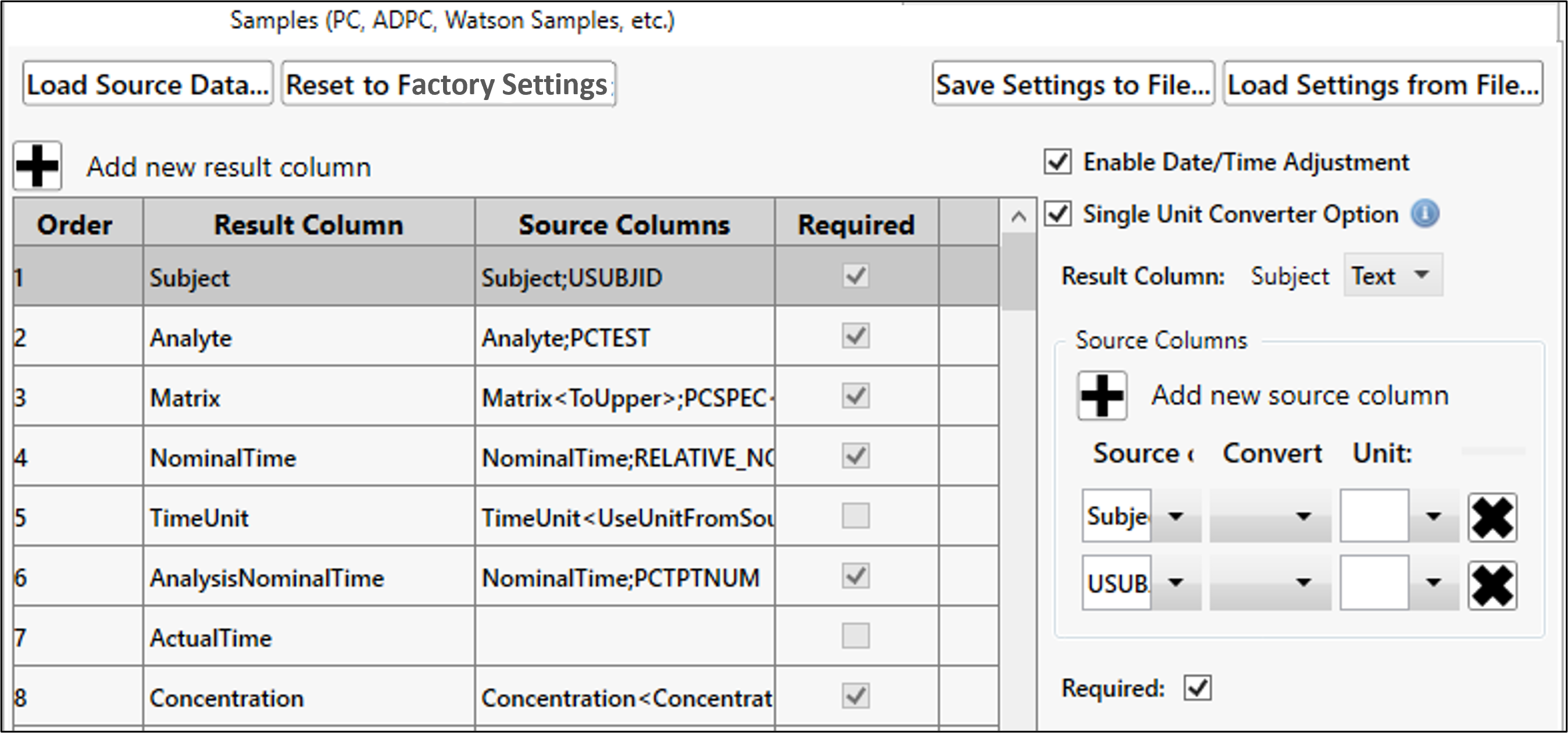
The settings discussed here affect the Merge Configuration page in the Data Preparation Wizard (“Configure the merge”).
Enable Data/Time Adjustment: (On Samples tab only) Control access to the Sample Day/Time Adjustments table.
Single Unit Converter Option: (On Samples tab only) Control access to the single unit converter dropdown as well as settings that can be applied to NominalTime and Concentration variables. 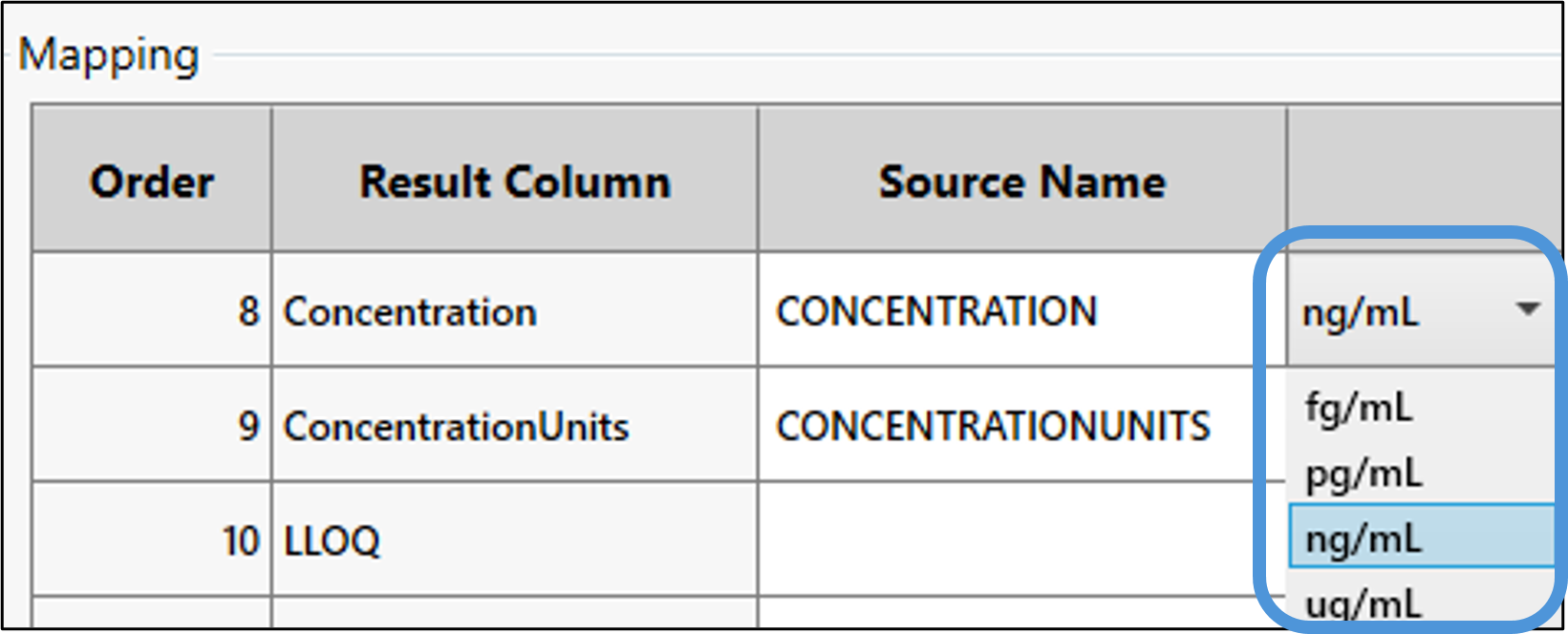
Add or modify a result column mapping
The automatic mapping of result columns with source columns and whether they are required mappings is defined in these source data type tabs.
Click + button or select the row in the table.
Rows for new result columns are appended to the table.
To the right of the table, enter or modify the Result Column name in the field (only available for editable result columns).
Select the data type for the column: Text or Numeric.
Define any source column names to automatically be mapped to this result column. PK Submit supports associating multiple source column names with one result name. This allows a central mapping set up that handles data with different naming conventions. 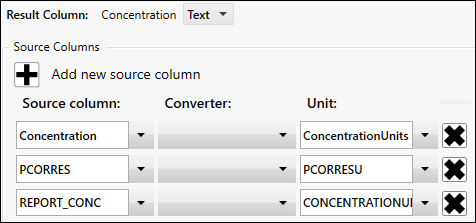
Click + button to add another source column name.
Enter the name of the Source column or select from the dropdown if you have loaded a source dataset.
If a Converter tool needs to be applied to the source column, select it from the dropdown. Refer to “Converter descriptions” for details.
If Units are needed for this column, enter or select the source column name that contains the units.
Continue to add more source columns (+ button) or delete them (X button). All source columns are listed in the table in the Source Columns cell for the corresponding result column.
To mark the mapping of this result column as required at the time of analysis, check the Required box.
For Demographics, Dosing, and Subject Level Data tabs, check the Sample Merge Key box if this result column is used to match with the Samples data when merging data.
Add or Modify unit converters for NominalTime and Concentration variables
These options are available when the Single Unit Converter box is checked and the NominalTime or Concentration row is selected in the table.
Click + to add a unit to the list of units available for conversion and enter the unit name in the empty field appended to the list.
To modify a unit, click the name and make the edit. To remove a unit from the list, click the corresponding X.
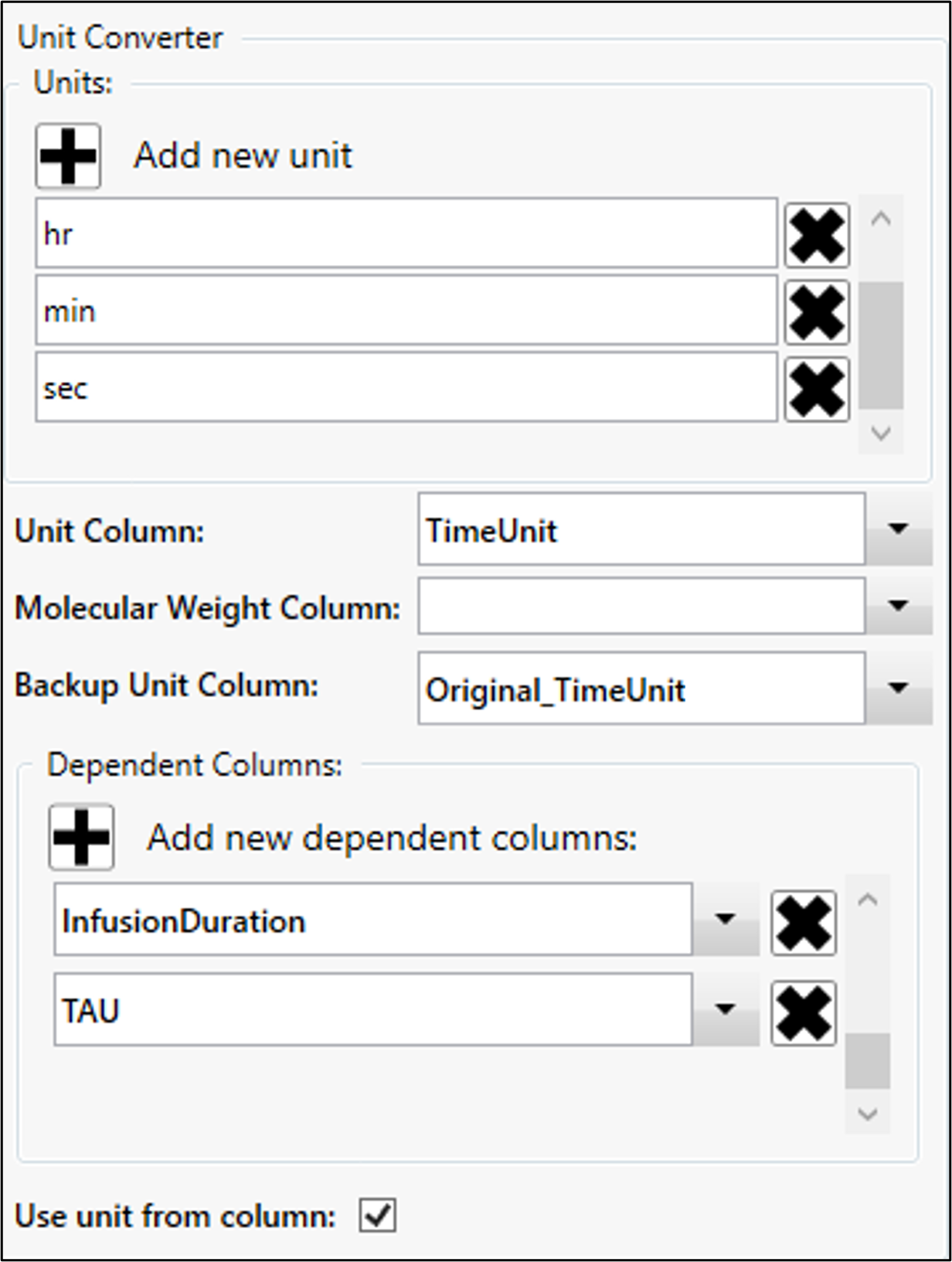
Select the Unit Column to update based on the unit selected at the time of analysis.
Select the Molecular Weight Column to use in any molecular weight conversions for the Concentration variable at the time of analysis.
Enter a name for the Backup Unit Column.
This create the original TimeUnit and ConcentrationUnits variables so you can see what was in the original dataset.
Click + to add a dependent column to convert based on what is selected for NominalTime or Concentration at the time of analysis.
To modify a column, select or enter the name. To remove a column from the list, click the corresponding X.
If the source data does not contain a column with time or concentration units but the unit is within the column header for NominalTime and Concentration, select the Use unit from column box.
View the full list of available rules and control which rules are applied during validation via the Selected column checkboxes. These settings affect the results discussed in the “Review data validation checks” section.
To review all selected rules, click in the Selected column header to sort by that column.