Sorting the columns in a table can be accomplished by simply clicking on the column header cell. Clicking the header multiple times will toggle between ascending and descending order. A sort direction indicator is shown in the header.
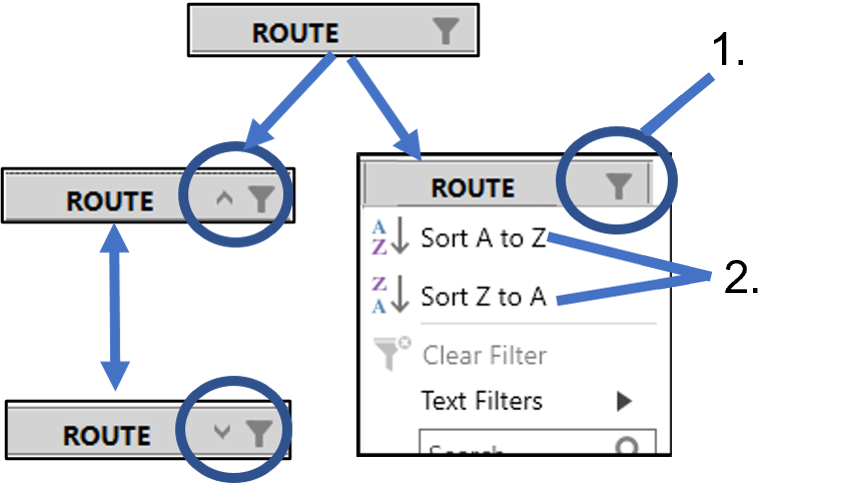
Alternatively, you can click in the column header, if the icon is present and select Sort A to Z or Sort Z to A.
Filtering of a table is permitted when you see in a column header.
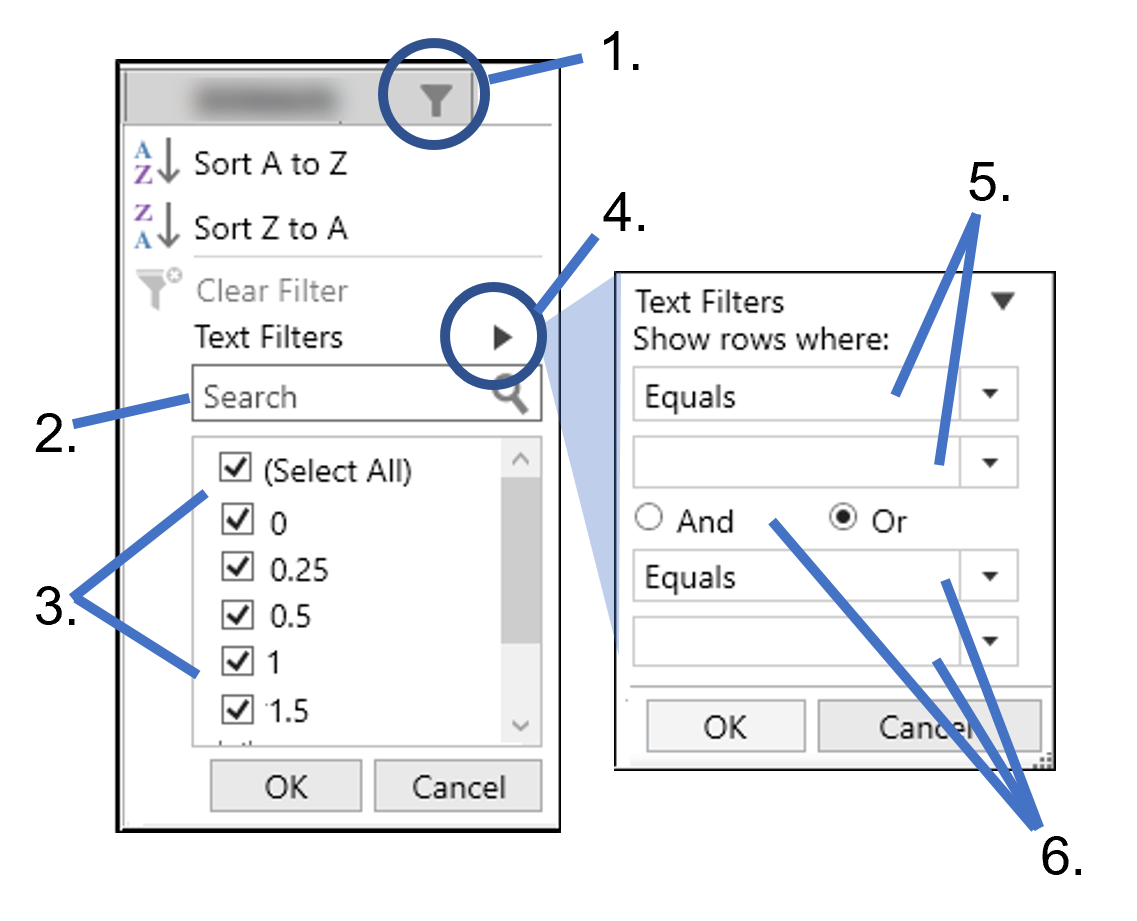
In the header of the column to be filtered, click .
The popup lists all values found in that column.
To search for values, begin typing the text in the Search field and the list in the popup will automatically be filtered as you type.
Use the check boxes in the list to control which rows are shown (checked boxes) or hidden (unchecked boxes) in the result worksheet. Use the (Select All) check box to check or uncheck all items in the list at the same time.
To define a filter criterion, click the Right Arrow button next to Text Filters (or Number Filters, if the column is numeric).
Use the dropdown menus to set the operators and value to set the criteria.
To include a second criteria, select the And or Or radio button and use the second set of dropdown menus to define the second criteria.