Review analysis profiles
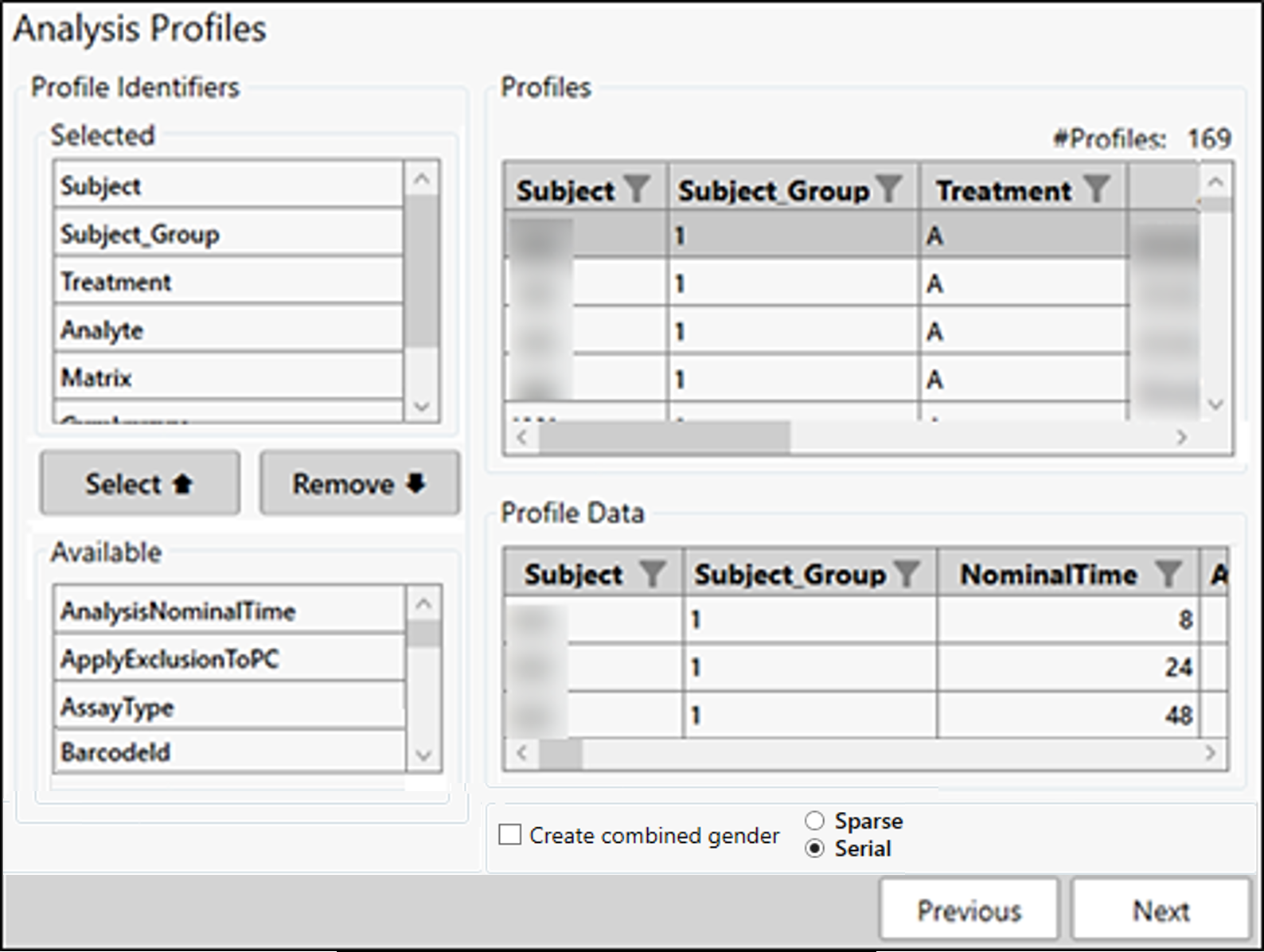
The Selected list shows those variables that are currently identified as NCA sort keys. The order of the variables in the list is reflected in the Profiles table on the right. This ordering can be adjusted by dragging an item up or down in the list.
The Available list displays all other available variables. There are two ways to move variables between the lists.
Drag an item from one list to the other.
Select a variable(s) in the Available list and press the Select button to add it to the Selected list or select a variable(s) in the Selected list and press the Remove button to move it to the Available list. (Note that these buttons will be grayed out until a selection is made in the Available list.)
The Profiles table on the right automatically updates as changes are made to the Selected variables list. Select one of the profiles to view the nominal time points for the profile in the Profile Data table.
In addition to the sort key selection, you can:
Specify trough profiles and samples on this page. See “Identify trough profiles and samples” for details.
Create a third gender by checking the Create combined gender box. The third gender is created by copying male and female data to the end of the table and renaming the Gender value as “Combined”.
Set the sampling design to Sparse or Serial for the entire dataset.
Or
Click Sampling Design to set up a mixed sampling design, where some data is serial and some is sparse (see “Set mixed sampling design”).
Quickly look at the time vs concentration graphs of the data using the Visualization tool. 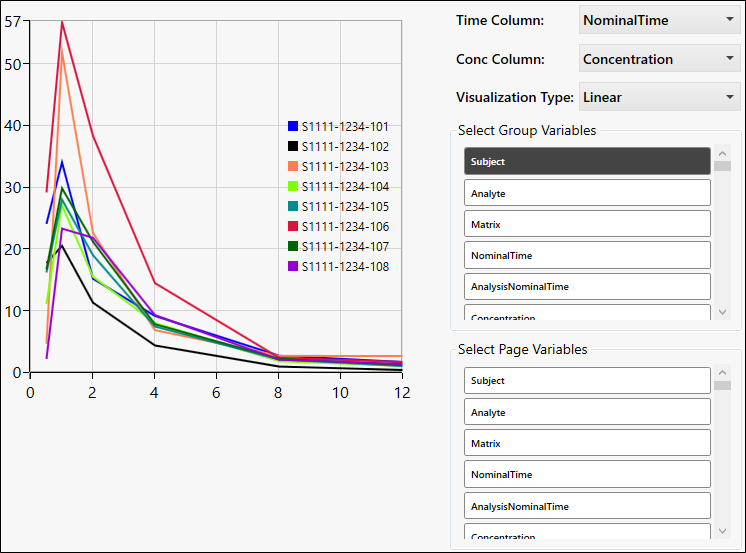
Default settings and access to Sampling Design and Visualization tools are configurable, see “Analysis Profiles” in the configuration section.
When finished with the Analysis Profiles page, click Next to set up status codes and BLQ rules.