The following settings affect the PK Parameters Selection page in the Finalize PK Data Wizard (“Choose parameters”).
Check the Selected box of the PK Parameters to be selected by default (list on the right).
Click + to add PK parameters (appended to table) and enter the name.
Only user-defined PK parameters can be deleted (X button).
To review your selected parameters, sort the Selected column by clicking in the header.
The settings on this page affect the list of ratio rules available to the user by default in the Ratios dialog and their definitions. Refer to “Define ratio calculations” descriptions of the column headings.
Click + to add a rule (row is appended).
Selecting a cell once to highlight the row, click a second time to edit the value.
Setting Type: Ratio for concentration or PK parameters
Ratio Variable: Variable from the data that will load Test or Reference values to choose from at the time of analysis.
Reference Ratio: Value used for reference in the calculation.
Test Ratio: Value used for test in the calculation.
Ratio Data Column: Variable used in the calculation of the ratio.
Prefix: Prefix applied to the ratio name; this names the ratio based on the prefix and Ratio Data Column name.
Ratio Type: Specify if individual ratios (e.g., accumulation ratio) or mean ratios (e.g., gender ratio) should be calculated.
Calculate %: Specify if ratio should be a straight value or percentage.
Group Variables: Variables used as sort keys in determining the calculation of the ratio, this is mostly a concern for calculating mean ratios.
Correct for Molecular Weight: Specify if a molecular weight correction should be done.
Minimum Small Sample Size (SSS): For mean ratios, specify a small sample size rule in the calculation as well as replacement symbol like “NC”.
Calculation Type: Choose to either calculate a ratio (Test/Reference) or difference (Test — Reference).
Click the corresponding X to delete a rule.

The following settings affect the list of available PK parameters in the PK Parameters Selection page in the Finalize PK Data Wizard (“Choose parameters”).
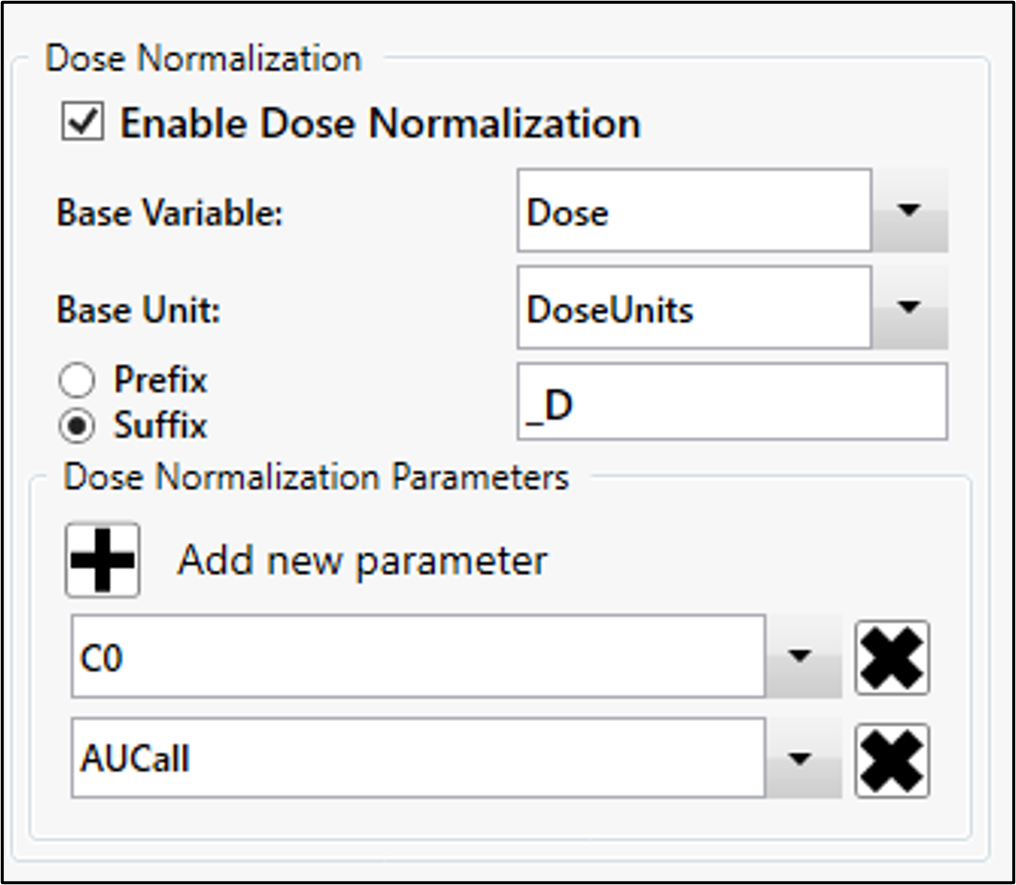
Check Enable Dose Normalization to include PK parameters normalized by dose, body weight, and/or molecular weight in the list of available parameters.
Select the variable used in normalization.
Select the units variable used in the normalization.
Choose whether to add a prefix or suffix to the name and enter the text to add.
Identify the parameters to normalize (click + to add a parameter to the list or X to delete it).
These settings affect the PK Data Exclusion page in the Finalize PK Data Wizard (“PK parameters exclusion”).
Choose the PK Parameters to select by default.
For rule-based exclusions, manual exclusions, and exclusion rule creation, choose the exclusion types to be available.
Exclude from PP: Excludes data from the PP domain.
Exclude from Statistics: Excludes data from the calculation of statistics within TFL Studio; the reason entered is used as a footnote for tables generated in TFL Studio.
Exclude from Report: Excludes data from reports generated within TFL Studio.
Flag: Does not perform any exclusions. This provides the reason entered by the user for use as a footnote for tables in TFL Studio.
Enable Comment (CO): Allows comments to be entered for certain data rows that will be included in the generation of the CDISC domain called CO.
Define default exclusion rules by selecting the variable, operator, value, reason, and clicking the >> button to add it to the list.
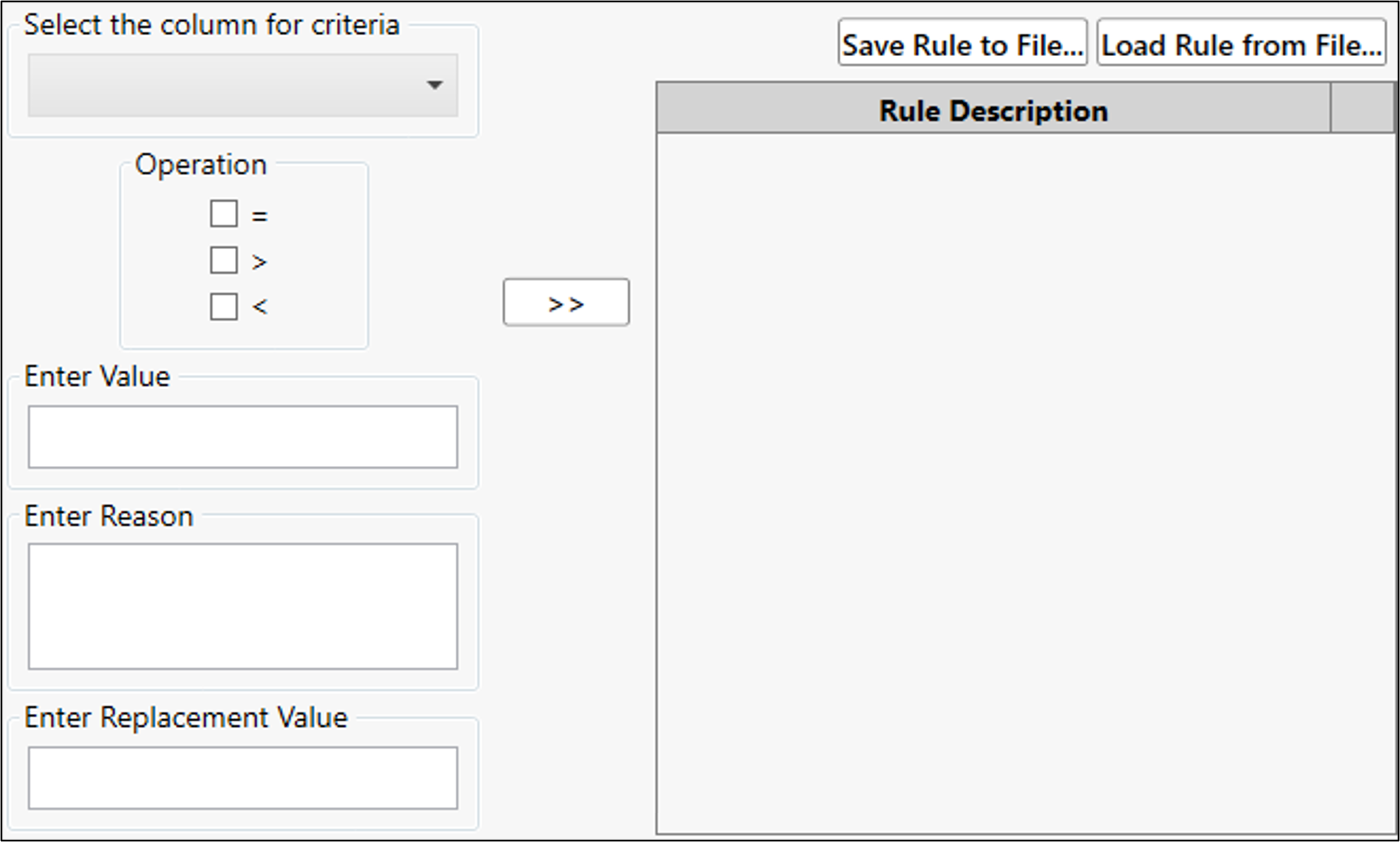
Use the Save Rule to File and Load Rule from File buttons to save the exclusion rules to a file and load them later.