PK parameters exclusion
Methods available for identifying the data to exclude:
To assist with viewing the data in the table, at the top of the page, there is a Select Columns button for choosing the columns to show or hide. Use the Freeze option to set the number of columns to remain visible during scrolling.
Default selections are configurable, see “PK Data Exclusion” in configuration section.
Select corresponding row(s) in the table.
Use  beside each column name to aid in the selection of records.
Right-click a selected row and choose Exclude from the menu.
In the popup dialog:
Check the box(es) for the desired Exclusion type(s).
Check the Flag box to add a flag column to the output that indicates any exclusions.
Enter the reason for the exclusion.
The reason appears later in the analysis, reporting, and SEND output.
Optional: The Replacement Value field generates a variable in the Final PK Parameter worksheet. This variable only displays the replacement value entered for the row that is selected for exclusion. The replacement value is not applied to the PP domain as the row that is selected for manual exclusion is completely excluded from the PP domain.
Press OK.
Note: The types of exclusions available are configurable, see “PK Data Exclusion” in the configuration section.
To clear a row’s exclusion settings, right-click the row and choose Undo from the menu.
Filter criteria can also be used to identify the records to exclude:
Under Parameter Selection, click the button for the parameter to exclude.
Selecting a parameter without specifying selection criteria will exclude all data points for that parameter.
Select where the exclusions are to be applied: Exclude from Report, Exclude from PP, and/or Exclude from Statistics.
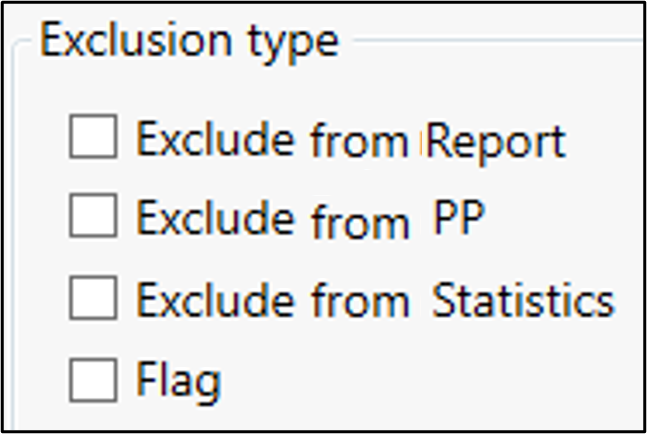
This is done by checking one or more Exclusion Type boxes or by selecting the reason first. Choosing a reason from the menu before selecting any type of exclusion will automatically check the Exclusion Type boxes that are relevant for that reason.
Alternatively, checking one or more Exclusion Type boxes will automatically update the Enter Reason menu to include only reasons relevant to the selected type(s) of exclusion.
Checking Flag allows you to flag data that was used in calculations. Use the Enter Reason menu to choose what is to be flagged. It does not flag exclusions.
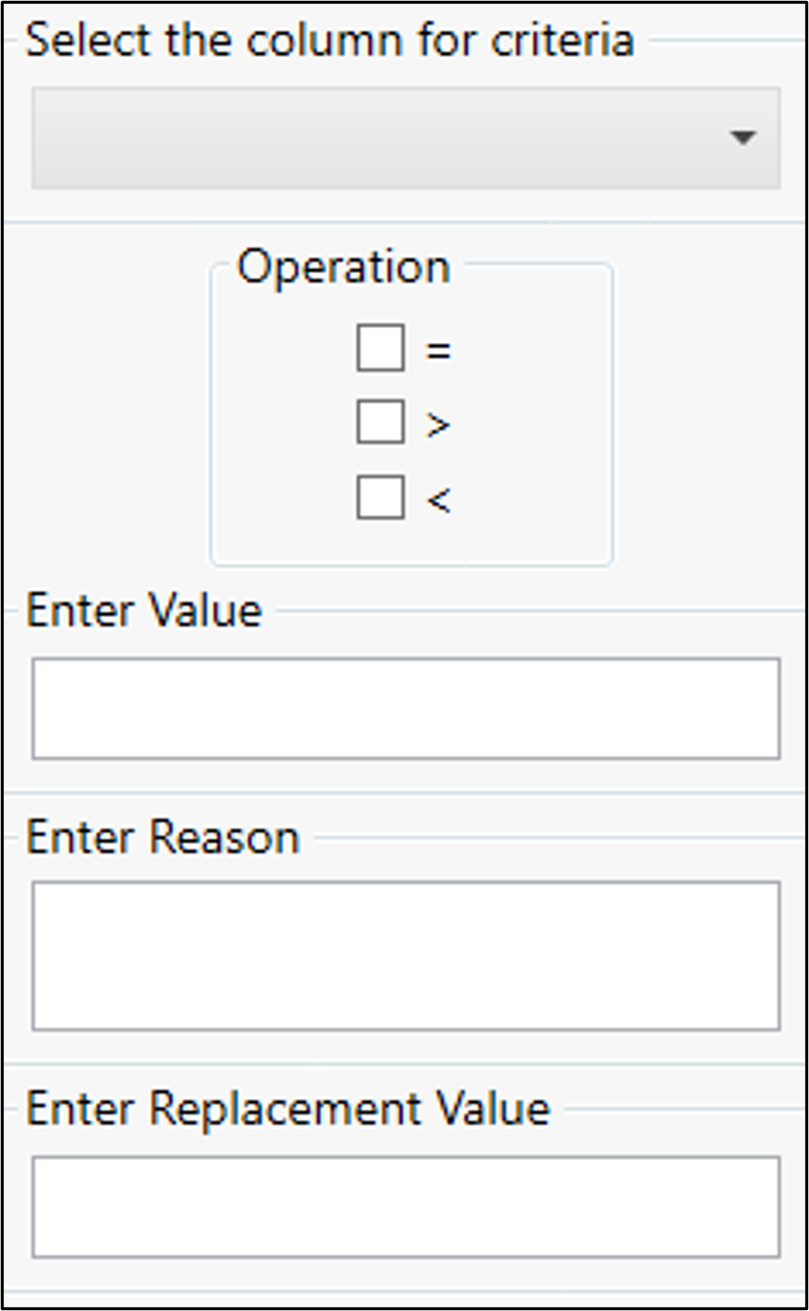
Define the filter criteria.
Select the variable on which to base the exclusions.
Check the box for the operator to use in the criteria.
Use combinations of two operators, if needed (e.g., check < and = to indicate the value is “less than or equal to”).
Type the value in the Enter Value field.
Enter a reason for the exclusion or select a predefined reason for the exclusion from the menu.
As mentioned previously, the list of reasons is dependent upon the boxes that are checked at the top (Exclude from NCA and/or Exclude from Statistics). If Flag is checked, the menu displays calculation data that is to be flagged.
The reason appears later in the analysis, reporting, and SEND output.
In the Enter Replacement Value field, enter a value with which to replace an excluded item.
In the reporting tables, the excluded value will be replaced with what is entered in this field. If no value is entered, the excluded value is simply removed from the cell in the table (i.e., it is left blank).
Press the Exclude button.
The rows that match the criteria will be shaded pink.
Press Clear Criteria to clear the fields and selections made on the page (any rows marked for exclusion will remain shaded).
Press Reset to remove all loaded criteria and user-applied rules. (Manual exclusions remain shaded, but can be removed using Undo in the right-click menu for that row or by selecting the parameter(s) in the list and then clicking Reset.)
Use the Save Criteria (after executing the filter) and Load Criteria buttons to re-use exclusion criteria with a different dataset.
When saving and loading criteria, the Exclusion Type and Criteria Variable columns are editable to allow more flexibility when reusing criteria with other datasets.
To specify more than one exclusion type for a criteria row, they must be separated by a semicolon.
When editing the Criteria Variable, the typed value must exactly match the variable in the dataset for the criteria to be applied correctly.
Load Criteria can also be used to read in a multi-criteria exclusion expression from a file, e.g.,
        [
           {"Filter":"Day = 1 AND Concentration = 65.9",
            "Reason":"Exclude Trough Sample TEST",
            "ExclusionTypes":["Exclude from NCA"],
            "OperationType":"Exclusion"},
        ]
Note: Comments can also be added during this step of the Analysis Wizard. Refer to “Add comments in PP worksheet” for details.
Use the Clear Worksheet Filter button to remove any column filters applied to the worksheet.
When finished with exclusion selection, click Submit to generate a Final PK Parameter Pivot worksheet in the Data folder.