Rule-based duplication selection
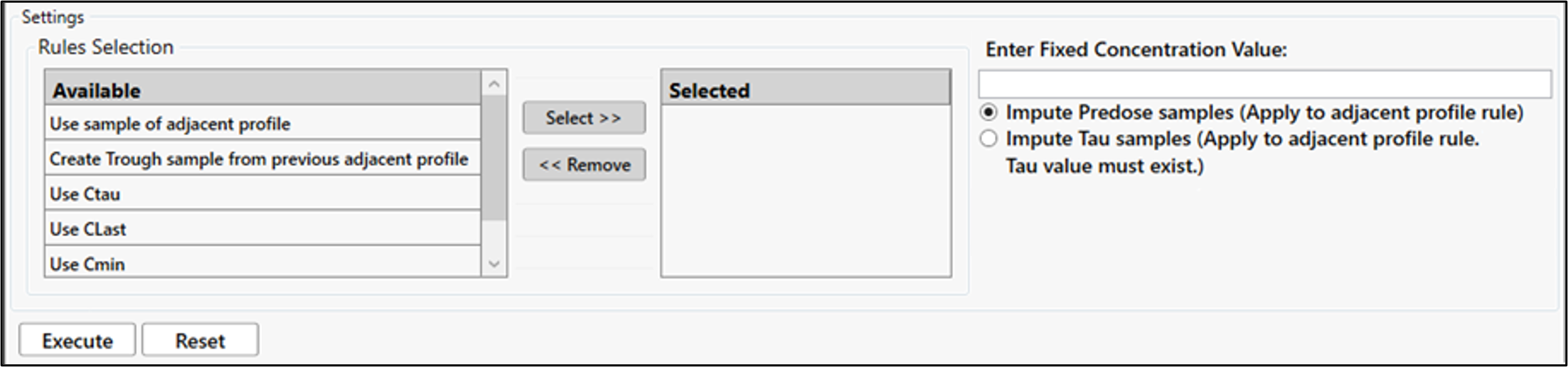
Select the duplication rule(s) in the Available list and use the Select button to move them to the Selected list. (Similarly, use the Remove button to move Selected rules back to the Available list.) Choose from:
Create Trough sample from previous adjacent profile: Duplicate Ctau from the previous day to become Ctrough (Predose) for the next day. (See “Example 3: Duplicate Ctau from previous day to Ctrough for next day” in Appendices.)
Use sample of adjacent profile: The time point for the next adjacent profile is duplicated as the last sample collected on the previous adjacent profile. The time point for the last sample on the previous adjacent profile is determined based on the tau value entered for that profile. (See “Example 1: Duplicate predose from next day to Ctau for previous day” and “Example 2: Duplicate last time sample from previous day to predose for next day”.)
Use Ctau: The Ctau is duplicated and used as the time “0” record value. This option is only applicable for profiles where tau has been applied.
Use CLast: The Clast is duplicated and used as the time “0” record value.
Use Cmin: The Cmin is duplicated and used as the time “0” record value.
Use Fixed Value: Enter the time “0” record value to use in the Enter Fixed Concentration Value field.
If one of the two “adjacent profile” rules is selected:
Choose the Impute Predose samples option to duplicate the sample of the adjacent profile as the predose of next profile. (See “Example 2: Duplicate last time sample from previous day to predose for next day” and “Example 3: Duplicate Ctau from previous day to Ctrough for next day”.)
Or
Select the Impute Tau samples option to duplicate the concentration at the Tau value of the adjacent profile. If a Tau value does not exist for the adjacent profile, a warning is displayed and the Tau value will need to be entered in the Dosing page of the Wizard. (See “Example 1: Duplicate predose from next day to Ctau for previous day”.)
Press the Execute button to perform the duplication.
Use the Reset button to return the Results table to its original state.
Press Next to set up concentration exclusions (see “Set up exclusions”).