Add comments in PC worksheet
The column COVAL in the CO domain stores comments. They also appear in the MasterCO worksheet in the Data folder. If a comment is more than 200 characters, additional COVAL columns will be added and sequentially numbered (e.g., COVAL1, COVAL2).
To add a comment to a data record(s):
Select the corresponding row(s) in the first table on the page.
Right-click a selected row and select Comment from the menu.
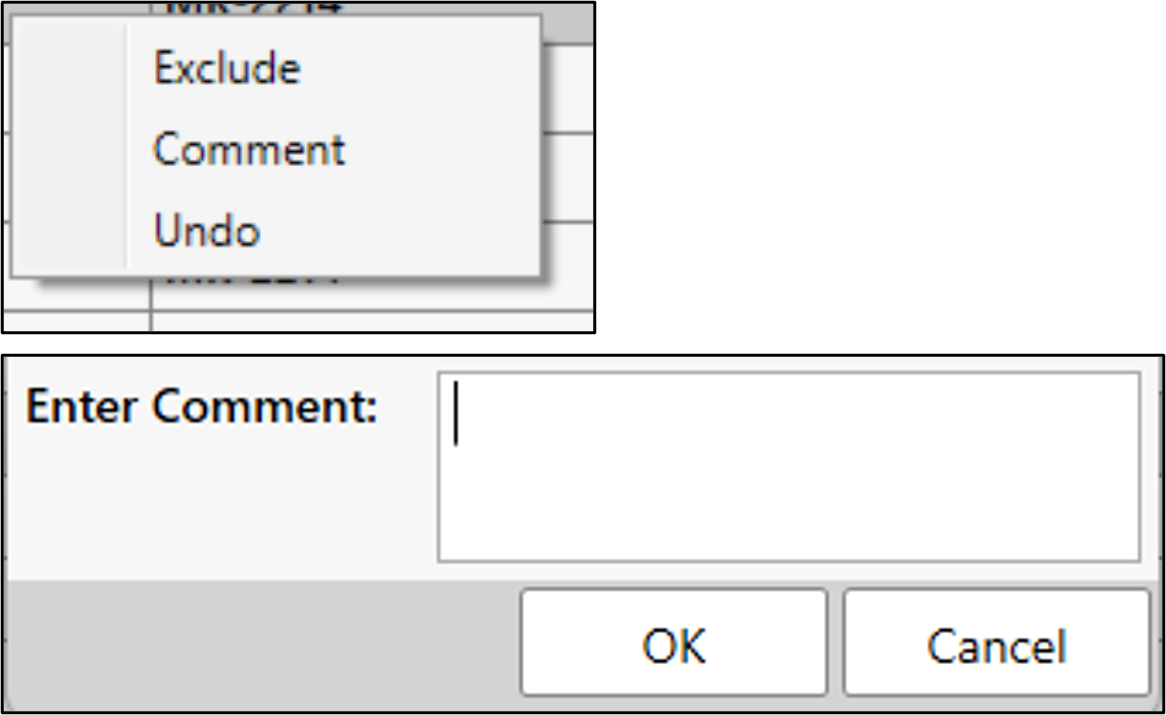
In the popup dialog, enter the comment and click OK.
Filter criteria can also be used to identify the records on which to comment.
Select where the comment is to be applied.
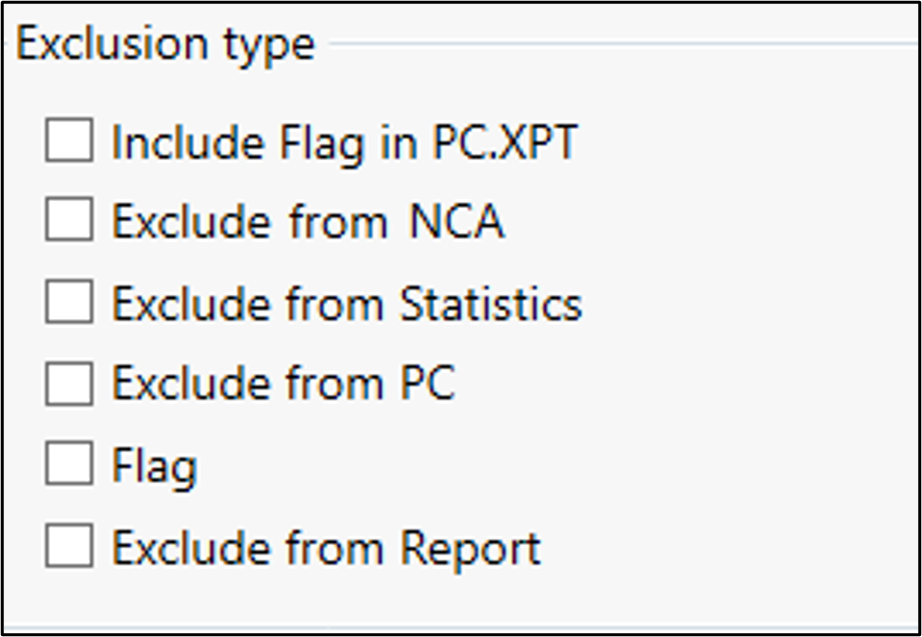
This is done by checking one or more Exclusion Type boxes or by selecting the reason first. Choosing a reason from the menu before selecting any type of exclusion will automatically check the Exclusion Type boxes that are relevant for that reason.
Alternatively, checking one or more Exclusion Type boxes will automatically update the Enter Reason menu to include only reasons relevant to the selected type(s) of exclusion. (The types of exclusions available and predefined reasons are configurable, refer to “Concentration exclusions” in the configuration section.)
Checking Flag allows you to flag data that was used in calculations. Use the Enter Reason menu to choose what is to be flagged. It does not flag exclusions.
When excluding from NCA or statistics, checking the Include Flag in PC.XPT box will add information in the PC domain about the exclusion.
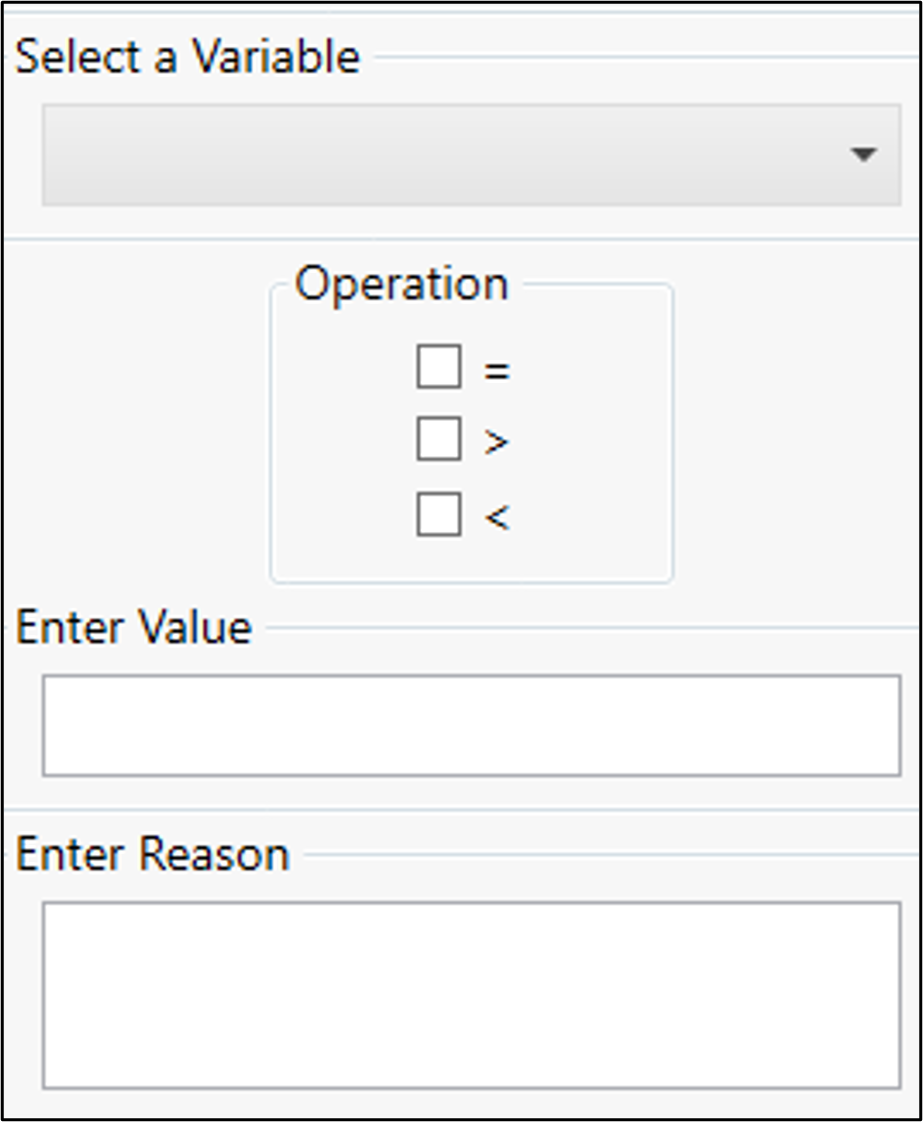
Define the filter criteria.
Select the variable on which to comment.
Check the box for the operator to use in the criteria.
Use combinations of two operators, if needed (e.g., check < and = to indicate the value is “less than or equal to”).
Type the value in the Enter Value field.
Note: Only a single value is supported for the Enter Value field. If multiple values are entered (e.g., a comma-separated list), no comments will be applied.
Click Comment.
To remove a specific comment, right-click the row and select Undo.
Click Clear Criteria to clear the fields and settings made on the page.
Click Next to move to the NCA Configuration page (see “Options for NCA analysis”).