GlobalSubmit Validate analyzes eCTD or NeeS submissions for technical errors and prepares them for the review process by creating a group of files. These files provide advanced organizational and review capabilities and provide excellent performance for application review through GlobalSubmit Review.
When Validate is used by a sponsor, any technical errors are checked and verified prior to submission and can be corrected by a publishing team, affording agency reviewers the ability to review submissions without interruption from technical errors. Valuable resources are retained for the sponsor and the efficiency of the review, QC, and approval process is greatly improved.
To be able to see the complete list of applications, use the scrolling bar as highlighted in the following image.
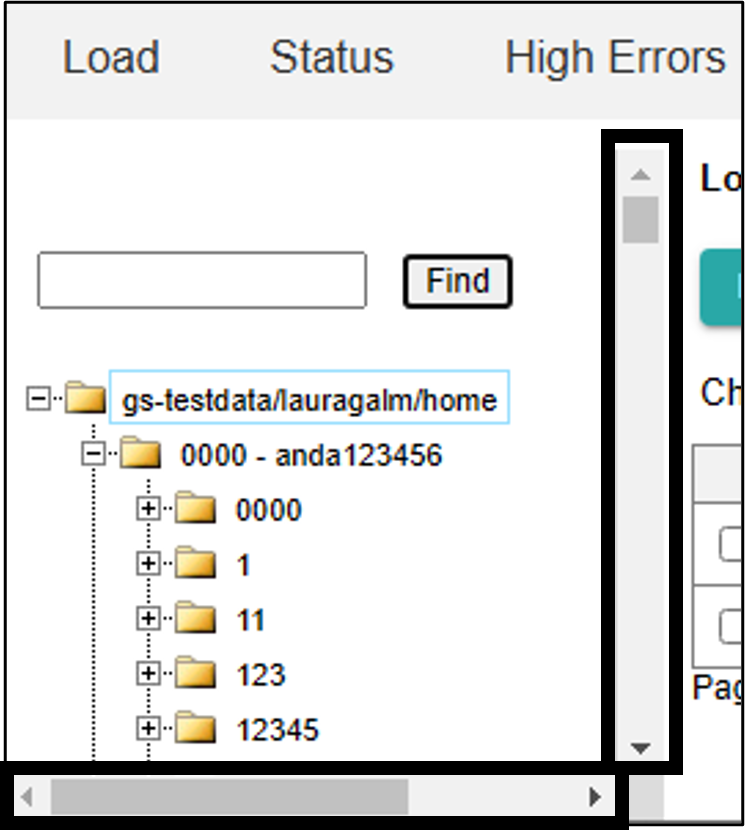
Columns can be resized and relocated inside any page containing a grid. To do so, click on the column heading and drag to place the column in the preferred location. Grids can be sorted by clicking on the column header of the column.
The Validate tools are accessed by clicking on the captions appearing across the top of the Validate screen, as shown below.

Load — See one of the following sections.
Status — See “View Status”.
High Errors — See “View High Errors Log”.
Reports — See “Generate Reports”.
Errors — See “View All Errors”.
Configuration — See “Configuration”.
Download — Download GlobalSubmit Desktop within the limits of your license agreement and the Adobe Plugin to enable PDF viewing. Also access a repository for GlobalSubmit provided documentation and links to additional information regarding the online product suite and how it helps the users with various activities.
About — Displays licensing and copyright information for GlobalSubmit Validate, including the installed version of Validate currently being used.
Sign Out — Exit the application.
Help — Access an interactive guide to assist with any issues that may arise in the previous pages. For instance, if you are in doubt about the Load page, click on Help and a context-sensitive Help page will appear to search for assistance.
A Diagnostic Test is provided to verify that all separate components necessary to run Validate are configured and working properly. See “Run Diagnostics” for more information.