The Status page displays the status of actions performed on the Load page (Load, Delete, and Update) within a range of dates.
To view the status, select Status at the top of the window.
Filter the list by specifying a date range (i.e., enter Start and End dates), search for a specific user (select a User Name), and/or select an Application Number.
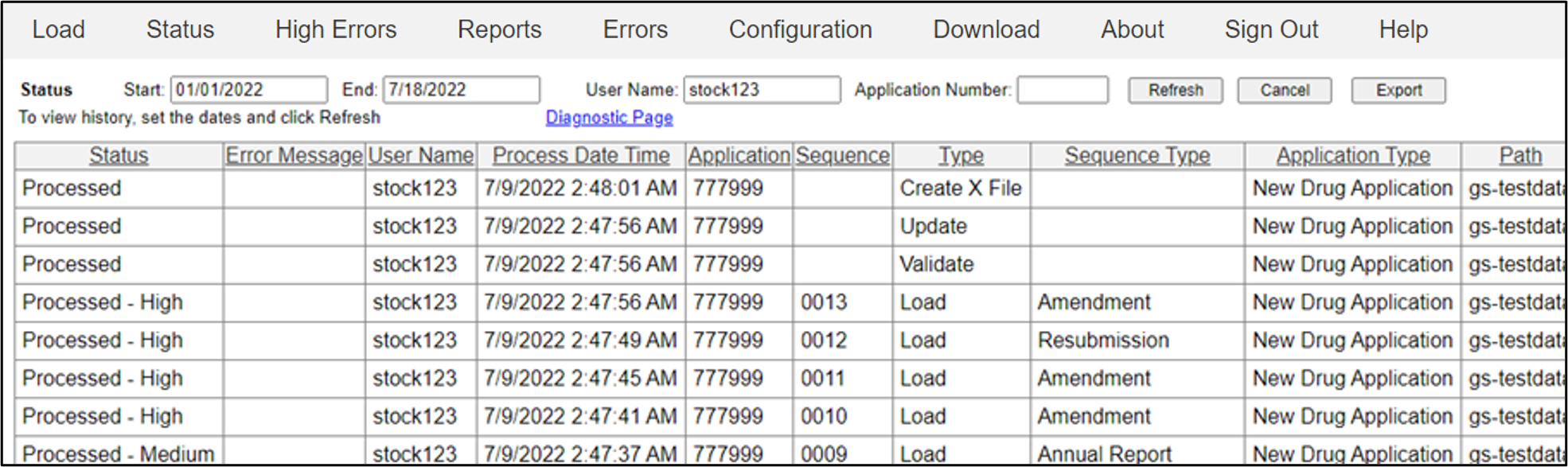
If the User Name filter is not set, information for all users will be retrieved. If set, any log with a User Name containing the entered text will be listed in the table.
All applications will be listed in the table, if the Application Number filter is not set.
To cancel any pending operation, select the operation and click Cancel.
Use the Refresh button to load the latest information.
Available fields on the Status page include:
Status
Pending — The application or sequence operation is in the queue waiting to be loaded.
Processing — The processing of loaded applications or sequence, creation of XFiles necessary for Review, and generation of reports is currently occurring in the queue, but has not completed.
Processed — The processing is complete and the application or sequence is available in Review. The highest error severity level encountered during processing will show next to Processed.
Failed to Process — The application or sequence did not process, due to an error.
Error Message — There was an error during the loading process.
User Name — The user who requested the action.
Process Date Time — Process date of selected application(s) and/or sequence(s).
Application — Application ID as provided by sponsor.
Sequence — Sequence ID as provided by sponsor.
Type — The type of action. This can be Load, Update, Delete, or Publish.
Sequence Type — Type of sequence, Amendment, Original Application, etc.
Application Type — Type of application, as provided by sponsor.
Path — Displays the path of where your application resides.
Note: You may need to click Refresh several times before all of your sequences show as processed. Processing will continue in the background.
If there are any issues with the Message Listener process, click the Stop Message Listener button and then Start Message Listener to restart the message listener service from the Status Page.