Installing on Windows (64-bit)
Download and extract the ZIP file that contains the installation files.
Note: If you have any 32-bit versions of Pirana installed on your machine, manually remove them before running the new installer. Use Windows Add/Remove Programs to do this.
Right-click pirana_desktop_windows_xx_xx_x.exe (where the “x”s represent the version number) in the extracted folder and select Run as Administrator. Login as an administrator.
If the installer detects an existing Pirana installation, it will be uninstalled first.
Check the Delete Pirana home directory box to remove the existing Pirana home directory and its contents (which includes saved settings) during the uninstall. To remove just the saved settings, check only the Delete Pirana settings box.
Press Next to proceed with uninstalling the existing Pirana installation.
Restart the installer.
When the Welcome screen displays, click Next.
Specify a destination folder and press Next.
Enter a name for the folder that will be added to your Pirana home directory to hold program shortcuts and other settings information.
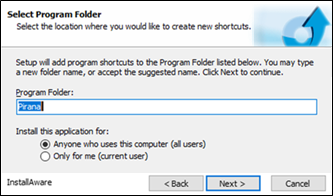
Use the radio buttons to indicate who can access this Pirana installation and press Next.
Optionally identify a home directory for Pirana other than your home directory and/or a cache directory other than your Temp directory and press Next.
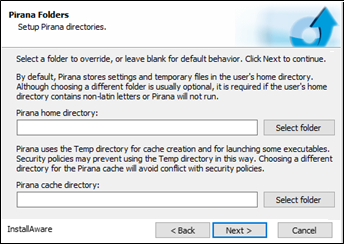
Use the Back button to modify previous screens or press Next to continue the installation process.
Once the installation is complete, click Finish to close the installer.
Upon initial launch of a new installation on Windows, you may encounter a Windows Security Alert dialog regarding Windows Defender Firewall blocking some features of the Pirana executable. In the dialog, check the appropriate box(es) to allow Pirana to communicate on the network(s).
Note: For Linux: Review the browser path in the CAD licensing tool (<install directory>/cad-licensing-tool/appsettings.json) and ensure it is set to the correct browser path for your Linux system (the default is set to Firefox).
When launching Pirana for the first time, a warning appears stating licensing has not been authenticated.
Select Help > License. 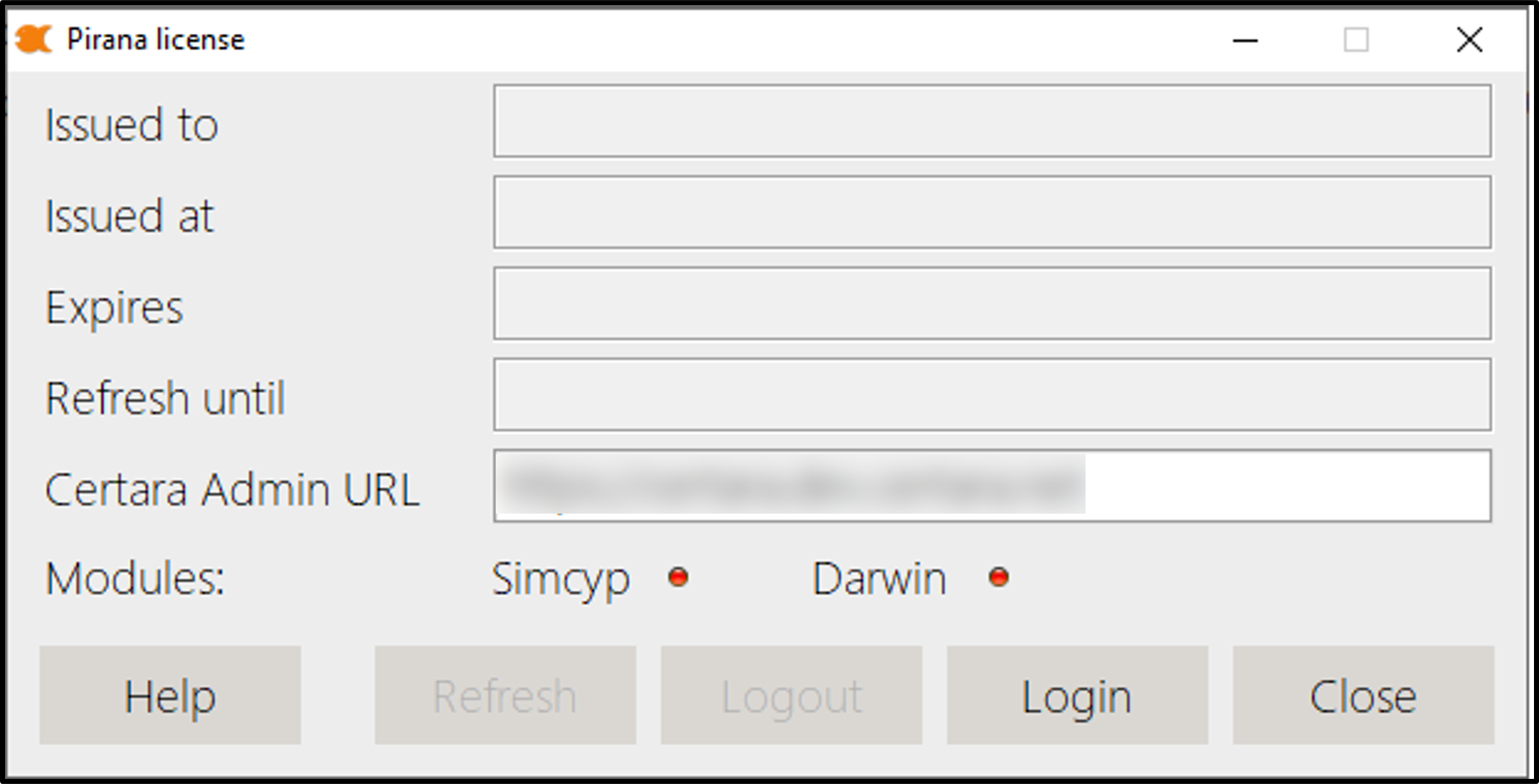
Press Login.
In the browser window that opens, enter your Certara credentials (or use SSO, if available) to authenticate your Pirana license.
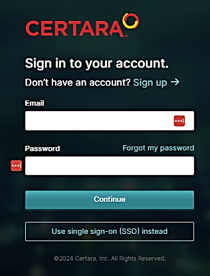
If your account has not been set up by your organization’s administrator, you will be redirected to Certara Admin’s registration page. Login can proceed but you will not have product access without the administrator’s assistance.
When th login success page is displayed in the browser, close the browser tab.
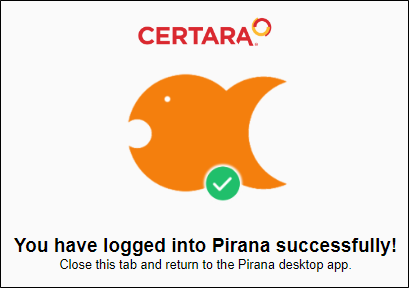
If you have not been granted product access, you will see an Access Denied message and should contact the organization’s administrator to request access.
Notice that the Pirana license dialog in Pirana has automatically updated.
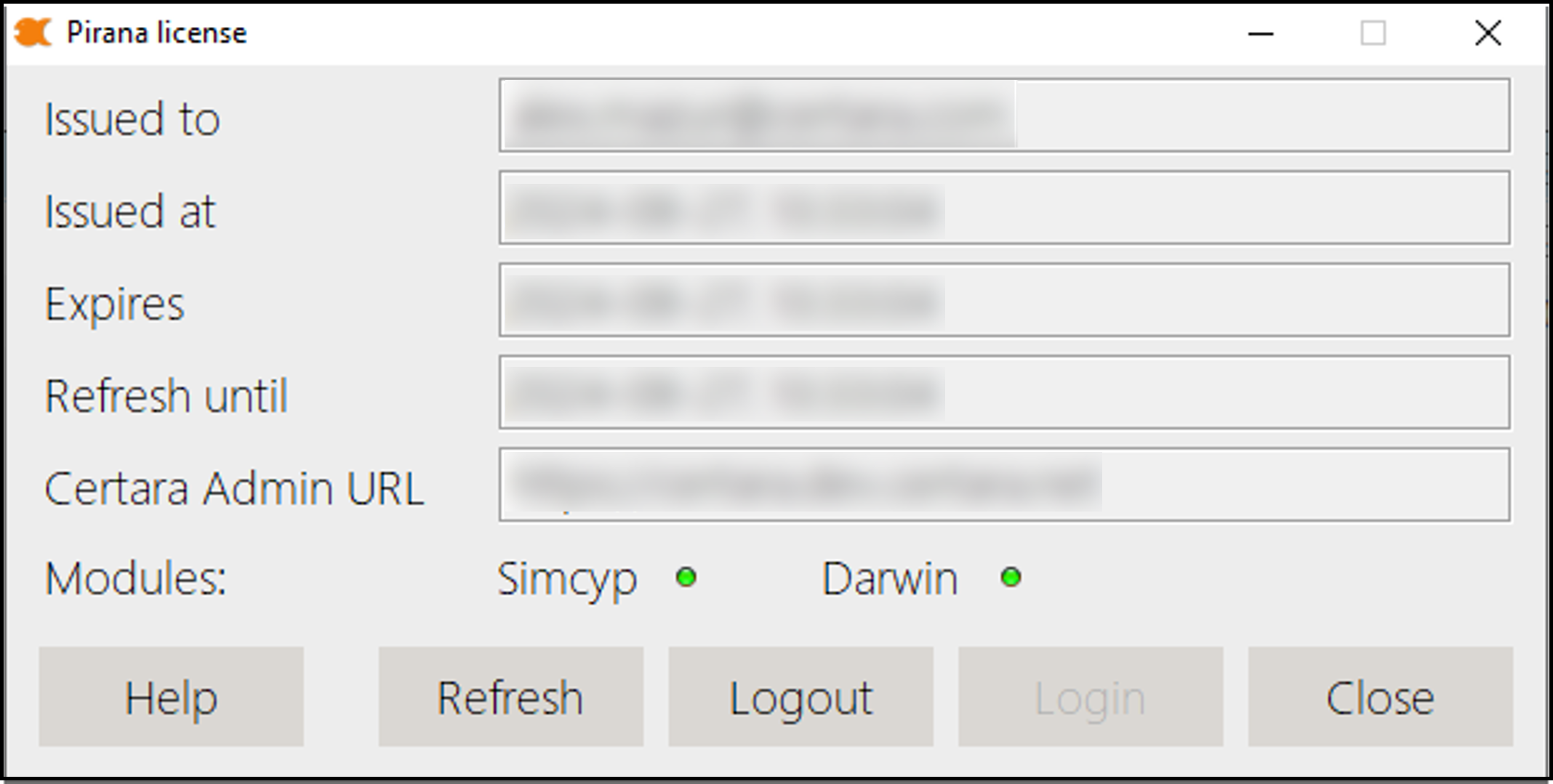
The dialog indicates any Pirana modules that have been unlocked by changing the red dot next to the Module name to green. You will see the time of the last connection to Certara Admin (Issued at), the expiration date, the remaining time allowed for offline use (Refresh until), and the Certara Admin URL for your organization. In addition, the login, logout, and refresh actions can be managed from this dialog.
Note: When you provide personal data, Certara’s Privacy Notice states that the information will be used for the purposes of administering or using Certara’s offerings and managing Certara’s relationship with yourself in any manner, e.g., setting up an account or collecting the personal data to process an invoice for accounting purposes.
Note: In organizations with restricted internet access, be sure to whitelist the organization’s URL since regular access is needed for refreshing the license.