Steps for generating SDTM CDISC domains and ADaM datasets for MAD plasma study
Choose standard and version
Select PK Submit > CDISC > Create CDISC Domains.
Since this is a MAD study based on serial data, select Sdtm3.4 as the standard.
Select V5 SAS Transport version
Select the SDTM Terminology that came with PK Submit.
Additional controlled terminology files can be loaded if you need to use a file other than the ones provided by PK Submit.
Click Next.
Review expressions
The expressions used to create the different domains based on MasterConcentration data and expressions from the standard selected are displayed.
If you need to modify any of the expressions, you can do that here and in other expression review pages. However, we suggest not modifying the expressions that start with “#cs” as these require some knowledge of C# programming. If you need these expressions updated, reach out to Certara support.
If an expression has a red border, there is a problem. Hover over the red triangle in the upper right corner of the cell to view a popup with details. Most of the red borders in this example are caused by a column not being found. These can be ignored, except for the modifications outlined below.
Click Next as no changes are needed for PC Mapping.
In the PP Mapping page, change the following expressions:
For the Visit column name, enter AVISIT as the expression.
For the SUBJID column name, enter
Substring (Subject, 12, 13)
as the expression.
For the SITEID column name, enter 123 as the expression.
For the APERIOD column name, enter 1 as the expression.
Click Apply to see the values updated in bottom-right table.
Click Terminology Mapping.
Under Unit Mapping, map 1/h to /h from the codelist.
Under Parameter Mapping, map Ctau to Ctrough.
Map R_AUC_TAU/AnalysisDay1 to ARAUC.
Click OK.
Click Next.
In the ADPC Mapping page, repeat the changes for SUBJID and SITEID.
For the SUBJID column name, enter
Substring (Subject, 12, 13)
as the expression.
For the SITEID column name, enter 123 as the expression.
Click Next.
In the ADPP Mapping page, click Next.
In the ADNCA Mapping page, repeat the changes for SUBJID and SITEID.
For the SUBJID column name, enter
Substring (Subject, 12, 13)
as the expression.
For the SITEID column name, enter 123 as the expression.
Click Submit.
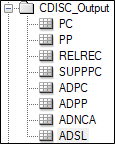
PK Submit generates worksheet versions of the CDISC domains.
Create files for submission
Select PK Submit > CDISC > Create Submission Files.
Enter the following information, which will be added to the define file:
Description = Multiple Dose Study
Protocol Name = MAD Phase 1
Protocol Number = 123
Protocol Version = 1.2
Sponsor Name = Certara
Click OK.
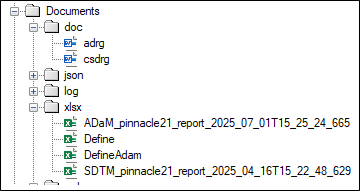
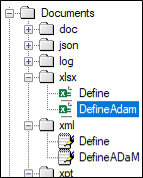
Define files are created in both XML and XLSX formats. All the CDISC domains are created as XPT files that include the appropriate labels for all columns.
Validate domains
The CDISC domains are validated using the built-in version of Pinnacle21 Community.
Select PK Submit > CDISC > Create Pinnacle21 Validation and SDRG Reports.
Choose the following settings to generate the SDTM validation report:
Engine – FDA 2405.2 or latest engine available (if an update of Pinnacle 21 Community engines on the local directory is needed, see the Help Center article for details).
Standard – SDTM
Source Format – SAS Transport
Configuration – SDTM-IG 3.4
SDTM CT – 2025-03-28
Click OK.
Select PK Submit > CDISC > Create Pinnacle21 Validation and SDRG Reports.
Choose the following settings to generate the ADaM validation report:
Engine – FDA 2405.2 or latest engine available (if an update of Pinnacle 21 Community engines on the local directory is needed, see the Help Center article for details).
Standard – ADaM
Source Format – SAS Transport
Configuration – ADaM-IG 1.1
SDTM CT – 2025-03-28
The validation report and Study Data Reviewer’s Guide (SDRG) are generated.