Choose the standard and terminology
Select PK Submit > CDISC > Create CDISC Domains from the main menu.
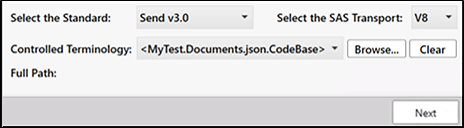
Choose the CDISC standard from the Select the Standard dropdown menu.
Specify the version of SAS Transport to use when generating the XPT files.
Note: Be sure to verify which SAS version is required by the agency to which you are submitting.
The Controlled Terminology field displays the file being used for terminology mapping.
Even though PK Submit comes with all of the Units, Specimen, and PK Parameter codes necessary to specify mappings, CDISC terminology mappings are frequently updated.
Use the Browse button, to locate and upload the latest version of the mappings.
Once a terminology file is uploaded, the Controlled Terminology field changes to a menu. Selecting a file from the menu displays the Full Path to that file. A copy of the uploaded file is saved locally to:
C:\Users\<user>\Documents\Certara\PKSubmit\CodeLists
Deleting the file from this folder removes it from the Controlled Terminology menu.
Press the Clear button to return to the default terminology mappings file.
Use the Select Ex Domain Browse button to choose an EX domain file and merge the dosing dates and time data needed to populate some fields in the PC and PP domains.
Subsequent visits to this page from a project where the domains have already been created displays an additional Select to restore CDISC expressions to their default configurations checkbox. Any expressions that you had modified when the domains were previously generated are reset to default expressions if this box is checked.
Press the Next button to set up the EX data merge.
The default standard are configurable, see “General CDISC Selection” in the configuration section. Definitions of the available standards are also configurable, see “CDISC Standard Configuration”.