These settings affect the Status Codes and BLQ Rules page in the Analysis Preparation Wizard (“Set status codes and BLQ rules”).
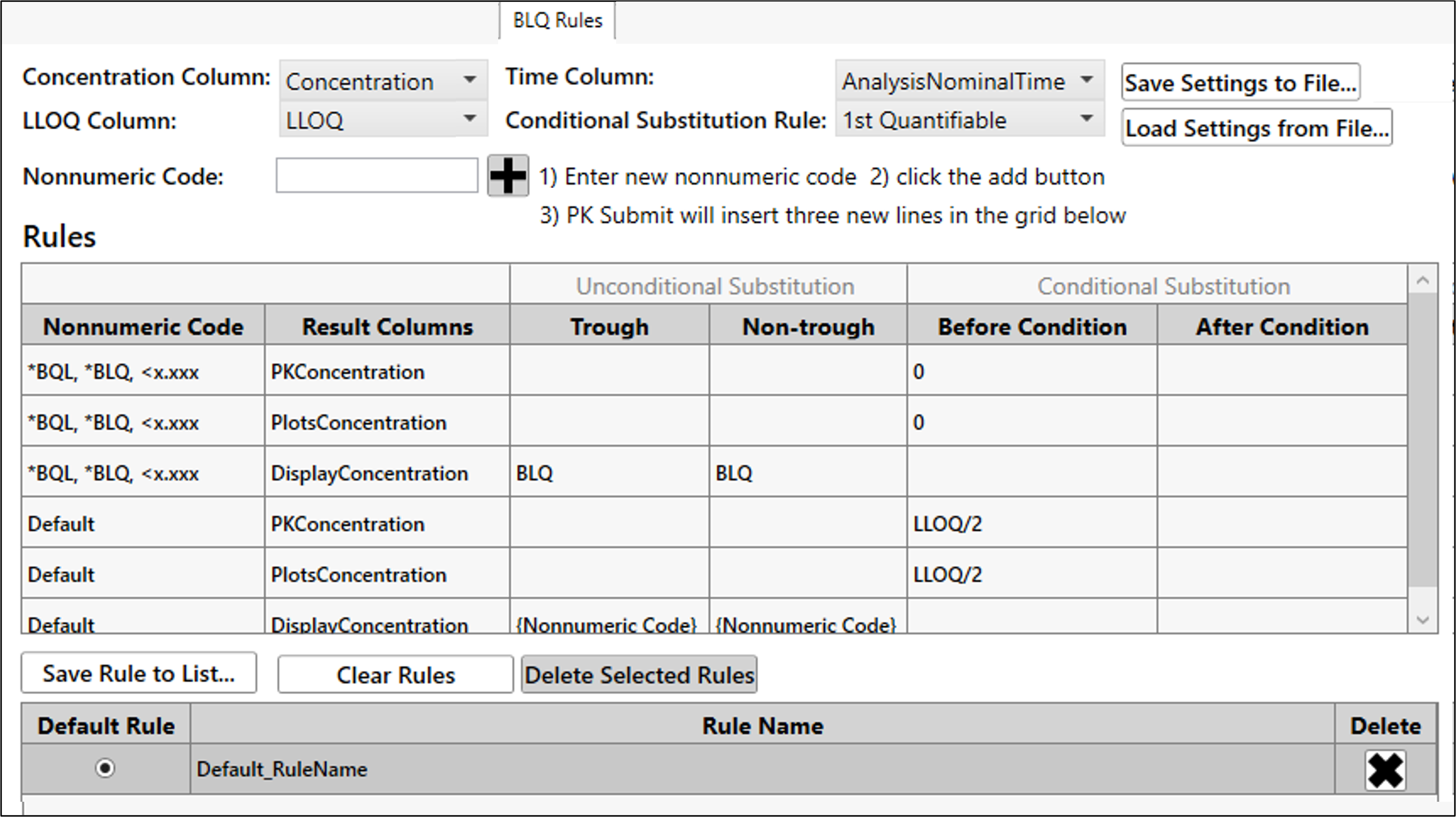
Control default selections for Concentration Column, Time Column, LLOQ Column, Conditional Substitution Rule options.
Create multiple BLQ rule sets
Enter the Nonnumeric code for PK Submit to recognize in your data (e.g., BLQ, NSR, <1.25, etc.).
The following types of wild cards are supported when configuring BLQ rules:
* — Standard wild card as a catch-all.
<x.xxx — Captures nonnumeric codes in format like <1.25 for example.
Default — Captures all other nonnumeric code that are not associated with BLQ (e.g., NS, NC, NSR, etc.).
{Nonnumeric Code} — Used in Substitution section for scenarios like carrying over the same nonnumeric code that is in the original data.
Click + to insert the nonnumeric code entered into three rows in the Rules table representing the three main concentration columns in PK Submit.
In each new row, specify how to treat the nonnumeric code when it is recognized during an analysis.
You can specify unconditional substitutions for trough or non-trough data or conditional substitutions for before or after conditions based on the Conditional Substitution Rule selected.
Add a new rule set
Click Clear Rules.
Verify the variable selections at the top of page.
Enter Nonnumeric Code.
Click +.
This creates a new rule set called “Default_RuleName1.”
Select Default_RuleName1 to review the nonnumeric code just entered.
Rename a rule set
Double-click the rule name.
Enter the new name and press the Enter key.
Modify an existing rule set
Select the rule set to modify.
To modify a value in the rule set, click the value and enter the new value.
To remove a rule from a rule set, select it and click Delete Selected Rules.
Once all changes have been made, click Save Rule to List to save the changes.
Select the modified rule set to confirm the changes.
To delete a rule set, click the corresponding X.
To specify a default rule set that will be selected automatically at the time of analysis, select Default Rule next to the rule set of your choice.