Any study variables mapped to a context other than None and any statistics selected in the Statistics tab are listed under Precision/Alignment.
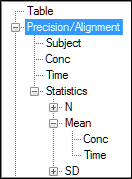
Select an item in the Options tab list to which the precision and alignment settings will be applied (use the Ctrl key to select multiple statistics).
Precision/Alignment node: Settings are applied to all variable and statistics columns.
Variable under Precision/Alignment node: Settings are applied to just the selected variable’s column.
Statistics node: Settings are applied to all statistics columns.
Statistic name under Statistics node: Settings are applied to all columns computed for that statistic.
Variable name under a statistic name: Settings are applied to only the statistic column computed for that variable.
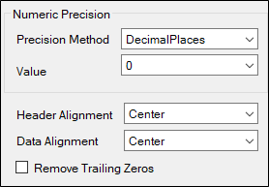
Choose the Precision Method to use when displaying numeric values: Decimal Places or Significant Digits.
Select Disabled to preserve leading zeros in text columns (e.g., Row ID and Stratification columns) and to remove trailing zeros in numeric columns that vary in scale.
From the Value menu, select the number of significant digits or decimal places to display for numeric values.
If the Statistics node is selected, use the Reset Precision to Defaults button to revert all precision settings for statistics to the defaults.
If statistics names are selected, use the Header Alignment menu to choose the alignment of the headers.
From the Data Alignment menu, choose the alignment of the values.
Check the Remove Trailing Zeros box to remove trailing zeros for either the decimal places or significant digits formats.