Output Sort Order and Input Column Order tabs
Most operational objects have an Output Sort Order tab used to arrange results worksheets based on the sort keys mapped in the primary data input. The Output Sort Order tab is located beside the Mapping tab.
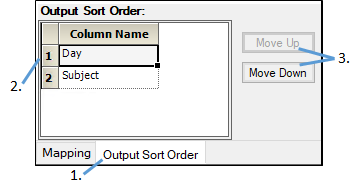
1. Select the Output Sort Order tab.
Data types mapped to the object’s Sort context are listed.
2. Select a column name.
3. Press the Move Up or Move Down buttons to change the position of the columns.
Results worksheets are sorted based on the selections made in the Output Sort Order tab.
Plotting operational objects have an Input Column Order tab for sorting the input columns used to create graphs. Select column headers mapped to different sorting contexts and specify how the points, bars, or lines are sorted in the output.
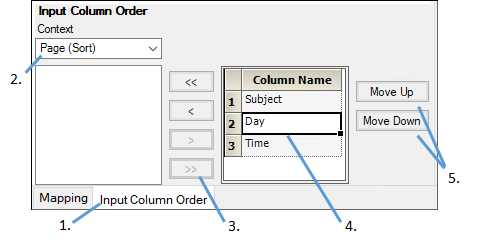
1. Select the Input Column Order tab.
2. From the Context menu select the context to which the sort keys are mapped.
Plot objects have multiple sorting contexts, so the menu options are different for each plot object.
3. The data types mapped to the selected context are listed below the Context menu.
4. Select a sort key in the list, then use the > and < buttons to move it between lists.
Use the >> and << buttons to move all sort keys between the lists.
5. Select a column name.
Press the Move Up or Move Down buttons to change the position of the columns.