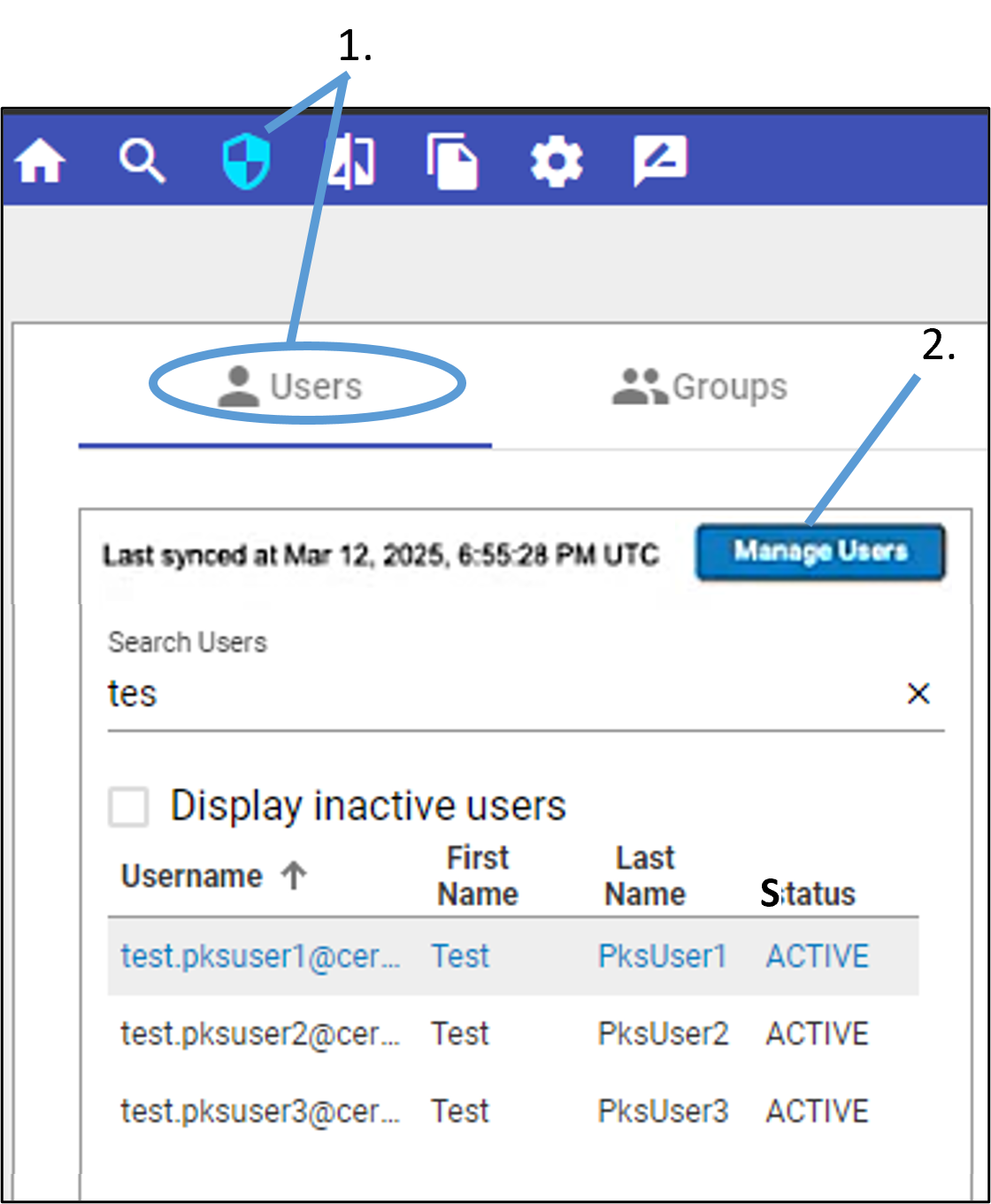
Click  in the toolbar to display the Users tab and press the Manage Users button.
This action opens Certara Admin (CAD) as a new tab in your browser and displays the People page, where you can manage Integral users,
Setting up a new Integral user in CAD
The following walks through the steps an administrator at your site would take to add a new Integral user and set up their access to Integral and its repositories. Refer to Certara’s Help Center articles on user management in CAD for more information.
Set up a profile in CAD for the new user.
In CAD’s People page, click +Add User at the top.
Fill out the information for the new user and press the Add User button at the bottom.
Grant access to Integral.
Click Give access and select Integral from the Product dropdown.
Select a repository from the Environment dropdown to set up access for the new user and press the Give Access button.
Assign role and license to new user.
Integral requires the selection of both a role and a license for each user.
Select the role by clicking the corresponding switch.
Assign the license by checking the corresponding Assign seat box.
Click Save at the top right.
Information in the Integral Security page is automatically synced with CAD every 5 minutes to ensure the accuracy of user lists and license assignments. However, you can perform a manual sync by clicking the User Sync button in the upper right. In either case, the page will need to be refreshed to view the latest changes.