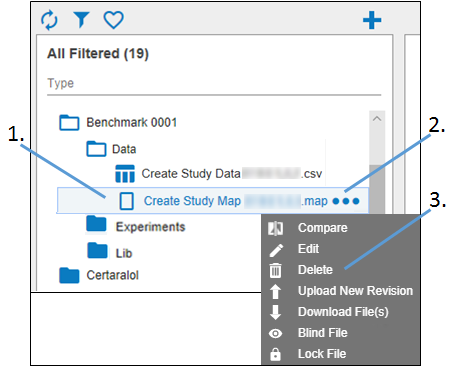
The action described here is a soft deletion of the file. It does not permanently delete the file from the database.
-
Select the file to be deleted.
-
Click
 .
. -
Select Delete from the pop-up menu.
-
In the Delete pop-up, click OK to confirm the file deletion.
Or
-
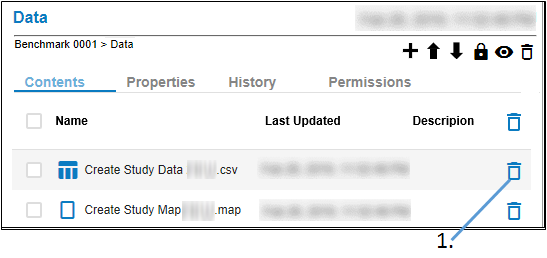
Select the folder containing the file to be deleted.
-
In the Contents tab, click
 to the right of the file to delete.
 -
In the Delete pop-up, click OK to confirm the deletion.
Or
-
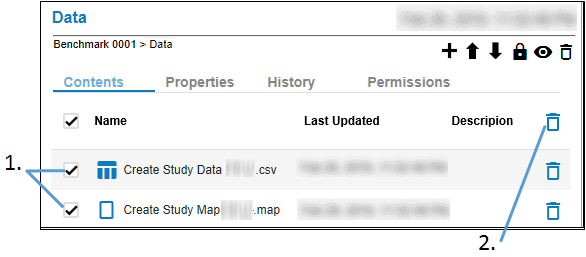
Select the folder containing the files to be deleted.
-
In the Contents tab, check the boxes in front of the files to delete.
Check the first box, in the column header, to check all of the boxes. -
Click
 in the column header.
 -
In the Delete pop-up, click OK to confirm the deletion.
Because you are making a change to the contents, an electronic signature is required. In the popup, enter a reason for the change, the password used to log into Integral, and then click Sign.
