Access Validate
Credentials should have been provided by GlobalSubmit or an administrator.
Open your internet browser of choice (Chrome, Microsoft Edge).
Sign in to Validate using the URL provided with your credentials.
Download Desktop
Go to the Download tab

Click on Desktop under the Installation heading.
Double-click the downloaded setup-review.exe file to install Desktop
When Desktop runs for the first time, it can be pinned to the taskbar for ease of access.
Once Desktop opens, right click on the Desktop icon on the task bar.
Select Pin this program to taskbar, as shown below 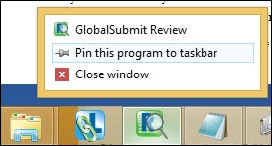
Set up Acrobat
There are one time setting modifications required inside of Reader or Acrobat in order to use the preview pane. Only 32-bit Adobe is supported, 64-bit is not compatible.
Open Adobe Acrobat or Reader, whichever is the default PDF tool.
Go to Edit -> Preferences. 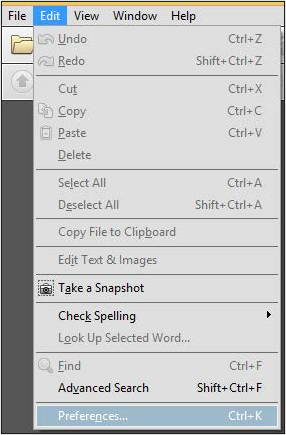
Under the Security (Enhanced) tab, as shown in the following screenshot, disable the following:
– Protected View
– Enable Enhanced Security
There may also be an option called Enable Protected View (not shown) which should also be disabled if it appears.
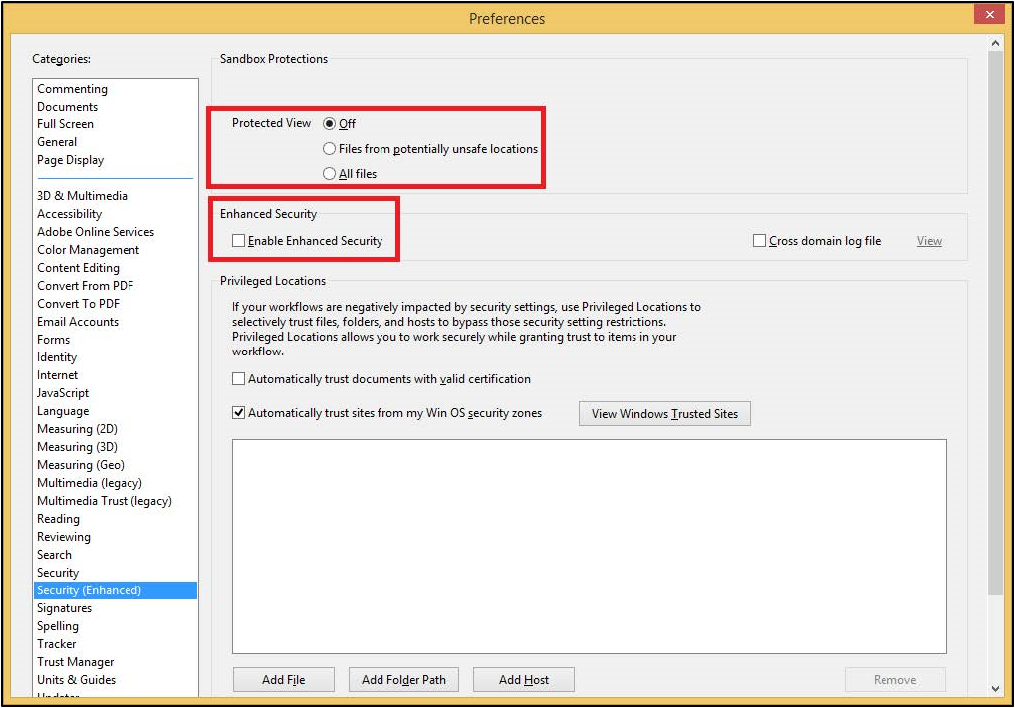
Click OK to apply the changes and close Adobe.
Once the previous steps have been completed successfully, Desktop is ready to use.
You can confirm by opening an application if it exists and choosing a document from the Details or Inventory tab inside of Desktop, if an application or submission already exists.
If any questions arise during or after the installation, our support team is available via email at AI-Support@Certara.com