The Application Report reflects errors for one application.
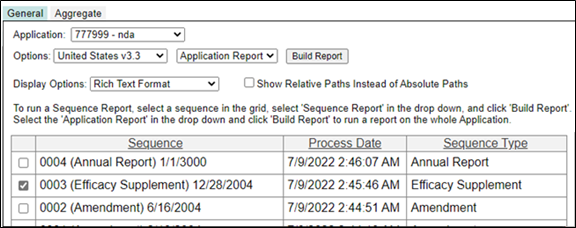
To run an Application Report, ensure all sequences have been loaded and processed. Then select the desired application from the Application dropdown.
The last ten previously loaded applications are included in the dropdown.
Choose the desired validation criteria from the Options dropdown and make sure Application Report is selected in the second dropdown.
Select the type of output from the Display Options dropdown. The options are:
Rich Text Format — Exports the report into a file readable by word processing programs, such as Microsoft Word.
CSV — Comma delimited format. Exports the report into a spreadsheet to be read in Excel.
Use the Show Relative Paths Instead of Absolute Paths checkbox to show the path as it appears in the eCTD tree in the report (checked) or to show a physical path to the files (unchecked).
Check the checkbox next to the desired application and press the Build Report button. The Downloading Report dialog is presented.
Upon completion, choose whether to Open the report, Save it, or Cancel the report in the popup window.
The following information and errors are reported in the Application Report.
Application Information — Company Name, Application ID, Application Type, Sequence Count, Option Name
Repeat Groups — A list of all metadata used throughout the application for consistency of nomenclature.
Application Errors — A general overview of the errors encountered in the application.
Unlike the Sequence Report, only the total number of each error encountered are listed. It does not list the specific path to each instance of the error.