Aggregate Reports track errors across multiple applications at the highest level, showing a summation of errors and trends amongst applications. These reports are generally used by the Agency, however, they can have specific uses for a pharmaceutical sponsor as well.
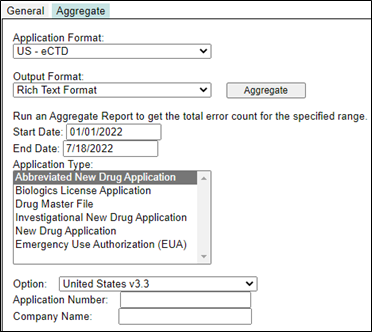
To run an Aggregate Report, ensure applications have been loaded and processed and select the Application Format. This will be based on Regional specifications.
US eCTD
EU eCTD
EU NeeS, etc.
Select the type of output from the Output Format dropdown. The options are:
Rich Text Format — Exports the report into a file readable by word processing programs, such as Microsoft Word.
CSV — Comma delimited format. Exports the report into a spreadsheet to be read in Excel.
Define a date range for the report by entering a Start Date and End Date.
Select the Application Type.
To select several Application Types in a row (e.g., New Drug Application and Abbreviated New Drug Application), press the Shift key and click the items. For non-consecutive selection, press the Ctrl key and click the items.
Select the format version to use from the Option dropdown.
Enter the Application Number and/or Company Name to limit the applications returned.
Press the Aggregate button to start generating the report. The Downloading Report dialog is presented.
Upon completion, choose whether to Open the report, Save it, or Cancel the report in the popup window.
The following information and errors are reported in the Aggregate Report.
Application Format
Application Type
Option Name
Date Range
Error Number and Description
Error Group and Count
Error Severity Level